
Where to find this report: Reports - Rides - Ride Data:
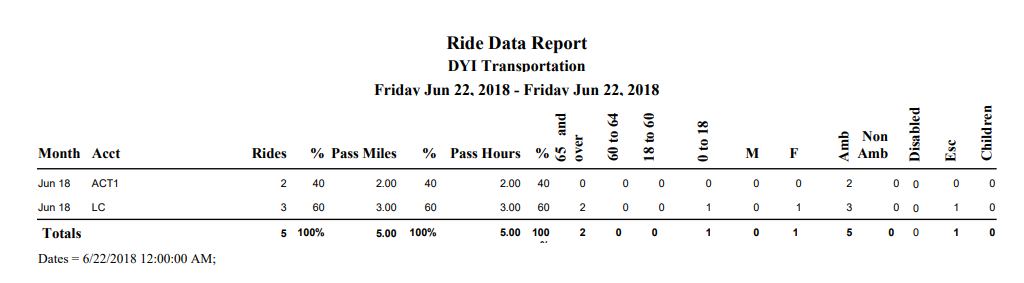
Column Headers from above, Left to Right.
1. Month = the month and the year. Above, June of 2018.
2. This will be the Group By option located at the bottom of the report set up screen. Here we have Grouped by Acct (Account).
3. Rides = The sum of unique Reservations. Above, grouped by Account, however there are many ways to group the Ride Data report. The Totals line will always be the same regardless of the Group By options selected on the report set up screen.
4. % = Shows the Percentage for the Group By option selected. Here we show that 40 percent of the 100 percent of Rides for this day fall under the Group By option Account, ACT1.
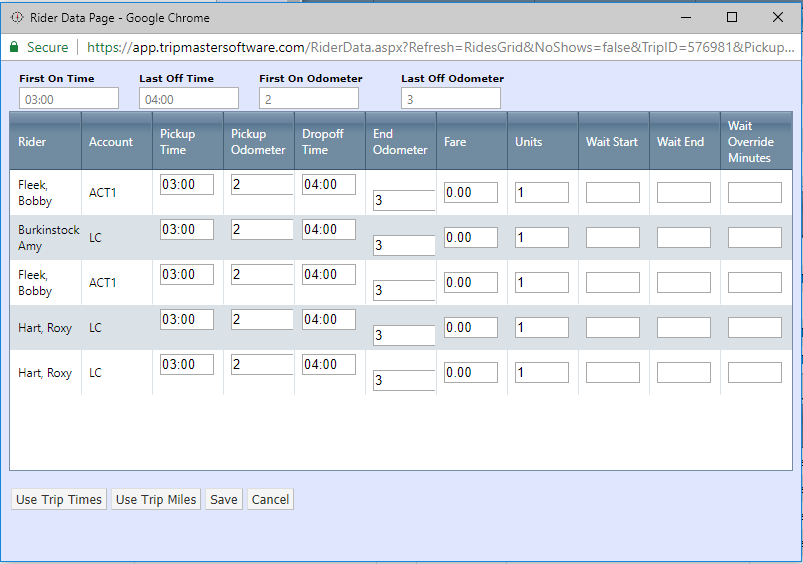
5. Pass Miles = The amount of miles passengers were actually on the Vehicle. See below.
6. % = Percentage of miles depending on Group By selection. Above we are showing the percentage based on the Account.
7. Pass Hours = The amount of hours passengers were actually on the Vehicle. See below.
8. % = Percentage of hours depending on Group By selection. Above we are showing the percentage based on the Account.
9. Age Range Demographics: This is reliant on each Client/Passenger having a Date of Birth entered in Rider Master. We use DOB to determine Age range on the Ride Data Report.
10. Gender (M/F): Is reliant on a gender being selected in Rider Master for a particular Client.
11. Ambulatory/Non-Ambulatory: This is determined by the radio buttons in the Reservation screen. There are 4 options; Ambulatory, Lift, Wheelchair and Stretcher. Ambulatory and Lift are captured as Ambulatory. Wheelchair and Stretcher are recorded as Non-Ambulatory.
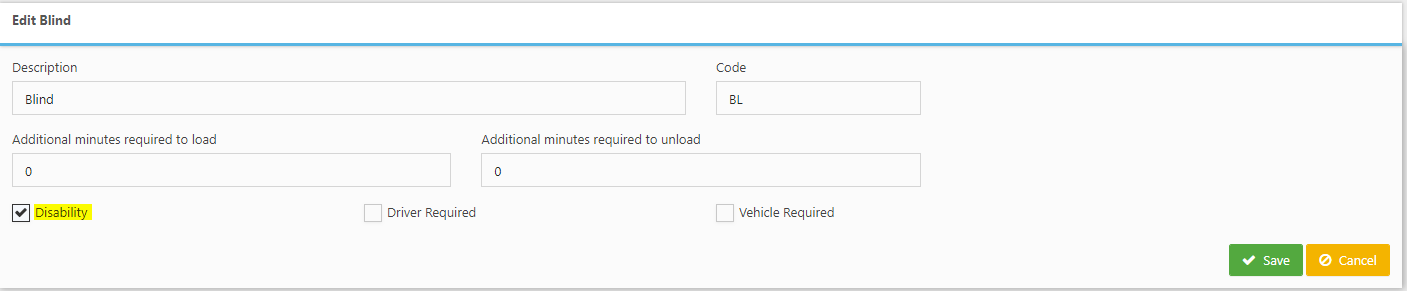
12. Disabled: This is determined by the Disability flag/checkbox, located in the Special Assistance Master. See below. If the checkbox is checked or not checked, the Client/Passenger will be recorded on the Ride Data report accordingly.
13. Escort = The number of Escorts entered on the Reservation screen for a unique Ride/Trip.
14. Children = The number of Children entered on the Reservation screen for a unique Ride/Trip.
15. Dates (bottom of report) = 6/22/2018 12:00:00 AM; = Date Range that was selected when setting up the report. If any Filters are applied to the report, they will also show up here.
Reports to compare this report to: None
Reports to not compare this report to: All
Trip Status requirements: Trip Status is Validated
Ride Status requirements: Ride Status is Rode
*If you ever total the Rides, Escorts and Children on the Ride Data report, and they don't match what is on the Units of Service Report, create a Custom Report that includes Rides, Escorts, Children and Units. Include a Filter for Units greater than 1. This should help you locate the reason for the difference.*
Other Things to consider: Sometimes Rides that were Validated on Trips/Routes as Rode, end up in the Holding Pen and the Status is changed. In this event, Refreshing Revenue Data will not update the Ride Data Report. These such Rides have to be placed back on the/a Trip/Route so the detail table in the back end can be updated. This will ensure the Ride Data Report is also updated.