Overview:
This guide will help you navigate to where to find the new reservation beta screen, a breakdown of the layout of the new screen, and some helpful tips to keep in mind when using it.
Section 1: Navigating the to the Beta Reservation Screen
- From inside of TripMaster, locate the “Rider Master” page and search for an existing rider.
- Once on the “Rider Summary” screen, you will see a new GREEN button to create reservations using the beta page:
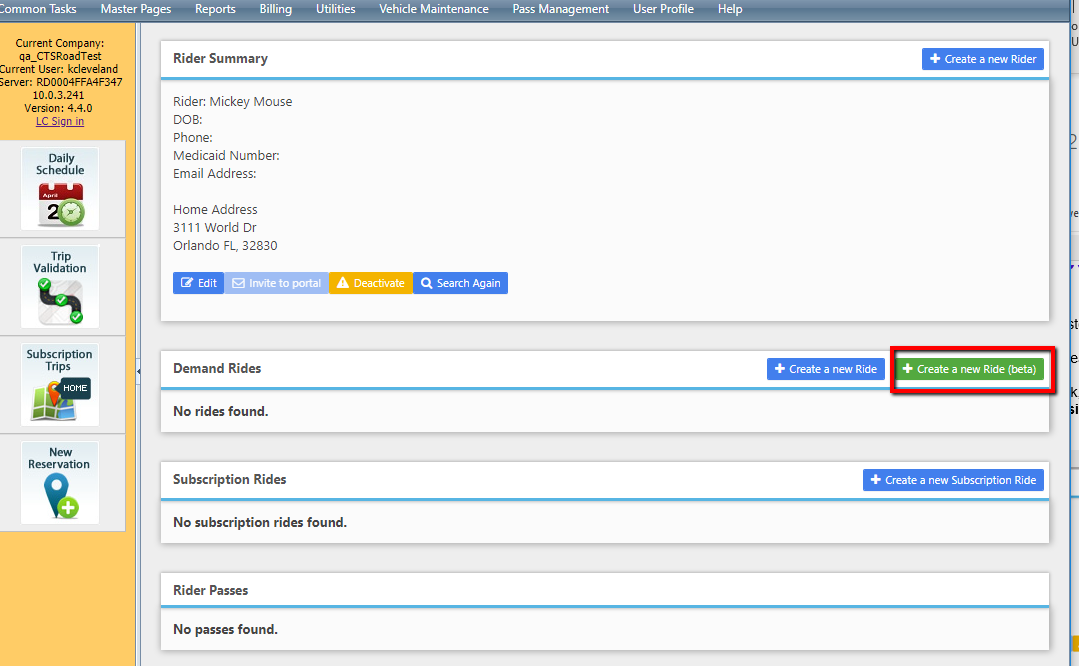
 You may still continue to use the adjacent blue “Create a new Ride” button if you wish to use the older version of this page until deprecation.
Section 2: The layout of the new beta Reservation Screen
We have grouped the beta reservation page by sections to relay the information in the most concise way possible. The sections of the new beta Reservation screen are as follows:
Customer Information Header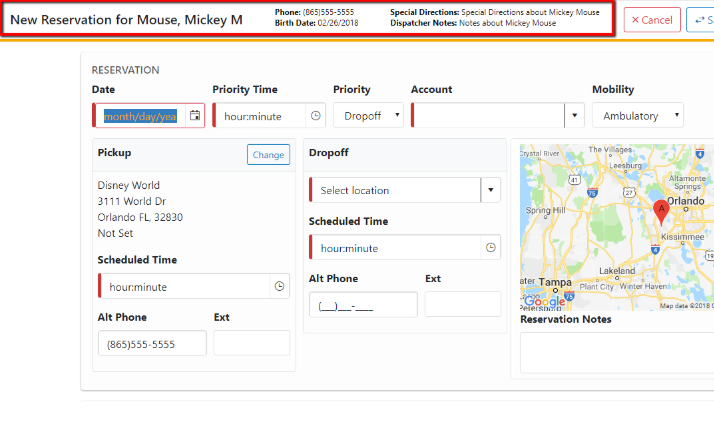
-
The customer information header at the top of the reservation beta screen is a quick reference for seeing important customer information such as Rider name, phone, birthday, special directions and dispatcher notes. This header will always be appended to the top, so that you will have quick reference to important customer information, and the save/cancel buttons (which will be discussed in the next section).
The Appended Buttons within the Customer Information Header
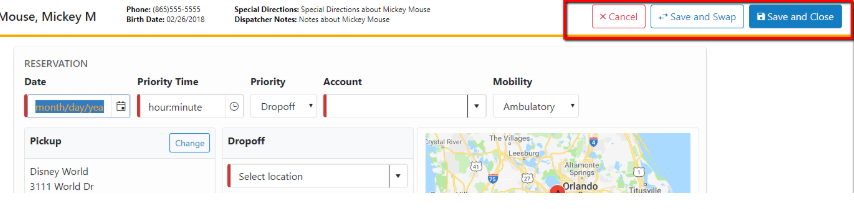
The button section in the customer information header will always be appended to the top of the reservation beta screen, meaning no matter where you are on the reservation beta page, these options are visible.
- Cancel – will cancel the new reservation or changes made to the reservation.
- Save and Swap – this works like the “Return reservation” checkbox in the current reservation page. The alternate priority type will be set, and the priority time will automatically be set based on the “return ride offset” in the company master. Perfect for creating the B-leg reservation to the A-leg that you just entered.
- Save and close – this will save the reservation but will not create any further return rides. Perfect if there is only an A-leg reservation OR you are done creating your A-leg and B-leg and do not need the C-leg.
The Reservation Details Section
The customer reservation section is where you will select the basic information to create a ride. This will include: Ride date, priority time, priority, account, pickup and dropoff information.
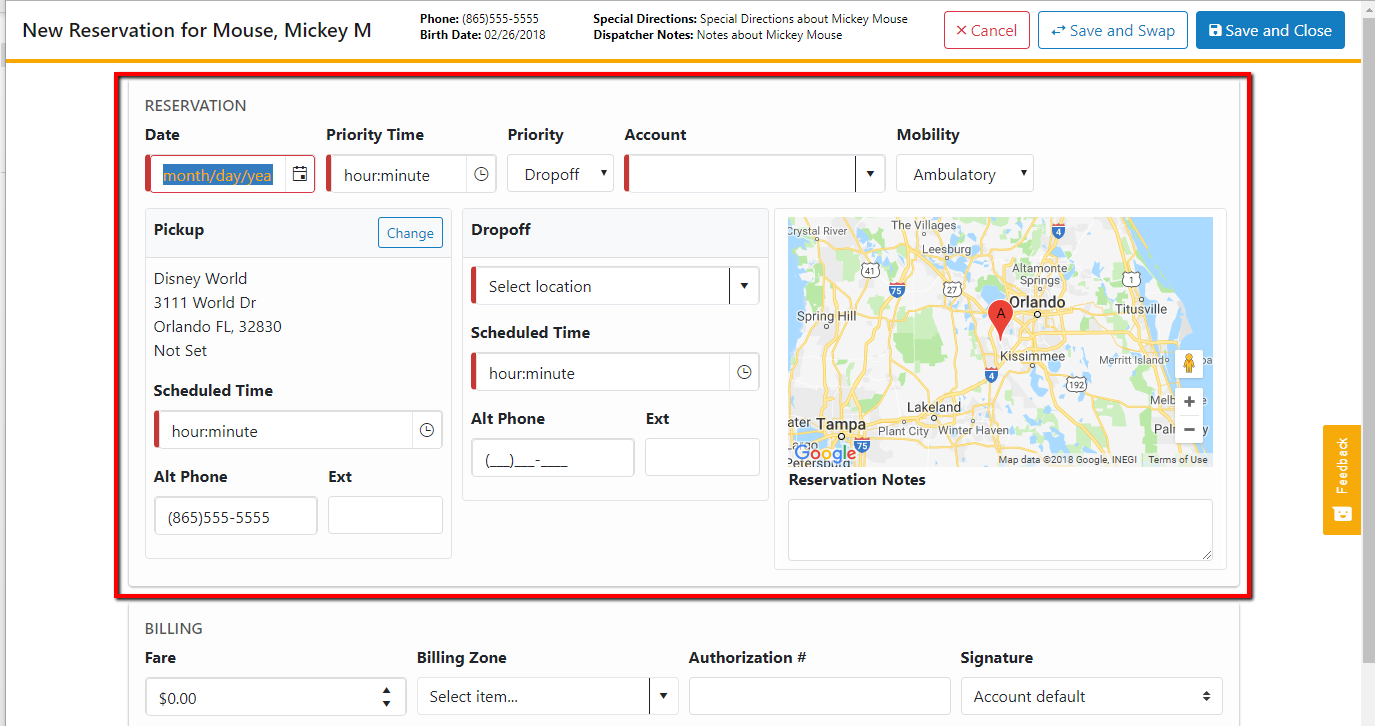 All of the required information to create and save a ride is located in this top section. You will no longer have to scroll to find all of the required fields.
Remember that the buttons at the top are always visible so once the required information is filled out, there is no need to scroll to the bottom to find the save or cancel buttons.
Previously used sites from the last 30 days in the past or future will be available in the pickup and dropoff dropdowns without having to search to add the site.
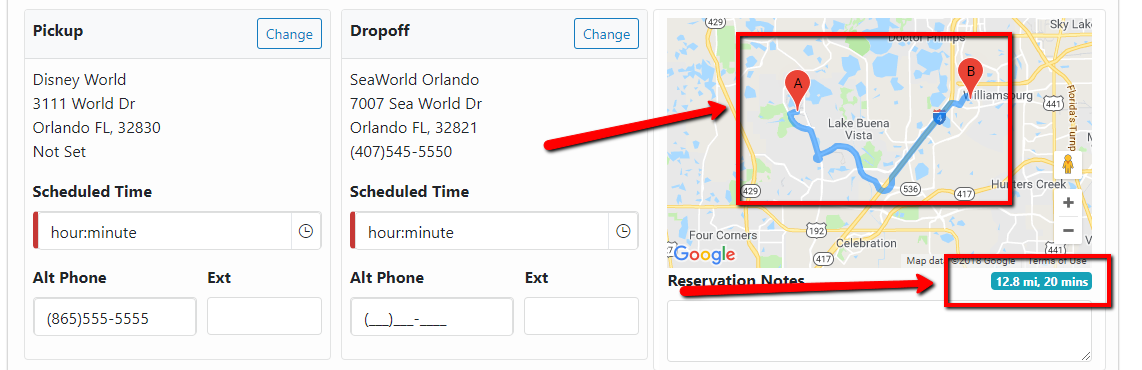
Once you select a pickup and dropoff address, your map will display the route inside of the reservation page. Note where direct drive mileage AND drive time is now located:
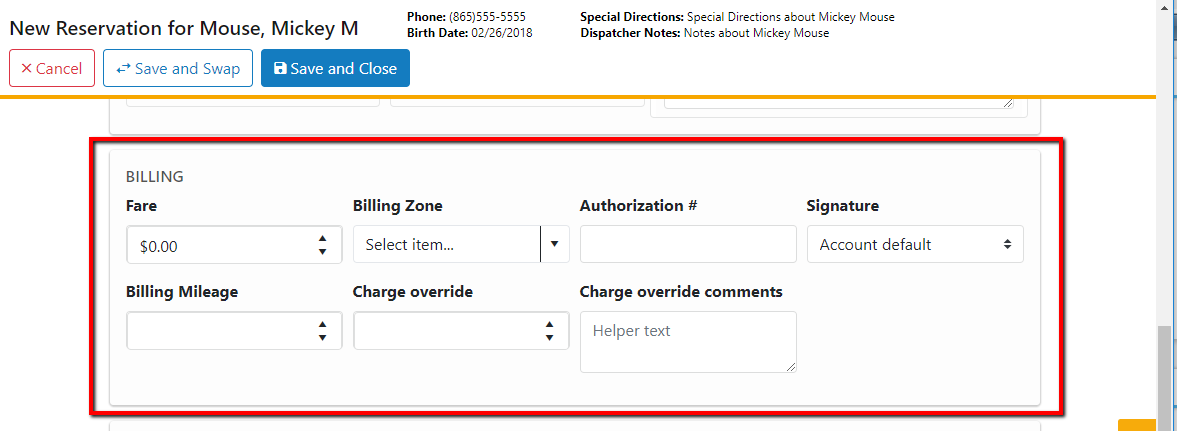
Billing Information Section
This section is grouped by information that you can assign to the reservation for billing purposes. This includes Fare, billing zone, charge overrides, and billing mileages.
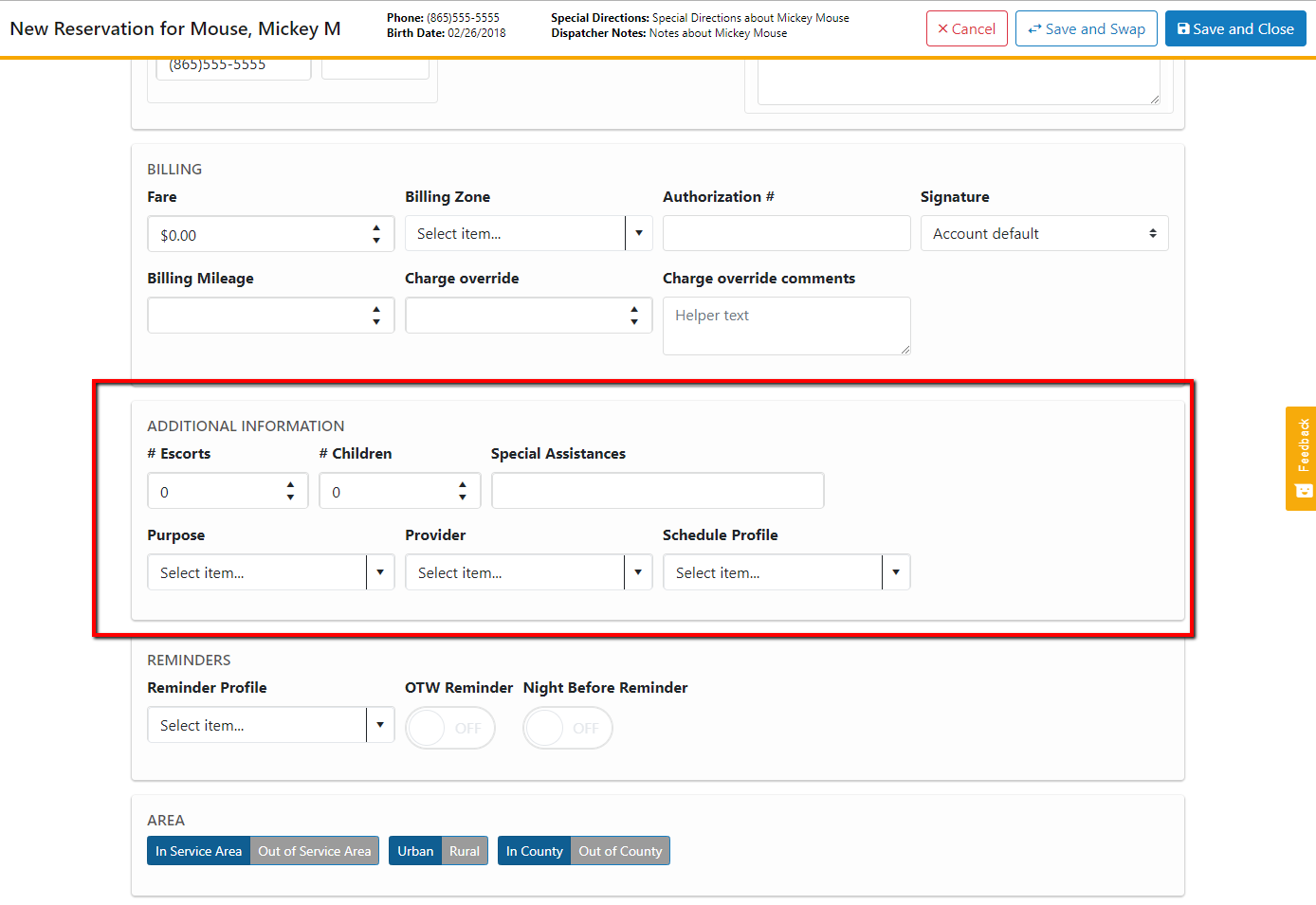
Additional Information Section
This section is grouped to allow you to capture the additional information about the reservation, such as: number of escorts, number of children, special assistances, purpose, provider, or schedule profile.
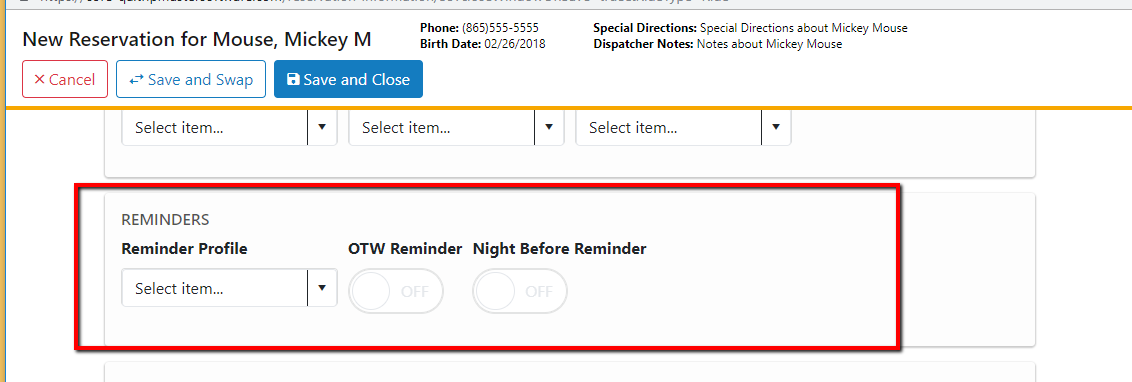
Reminder Section
This section is to set the “Reminder Profile” and the “On the Way Reminder” and “Night Before Reminder” Toggles. If you have not signed up for our Reminder feature, please contact us about how you can start making automated calls and texts for your riders.
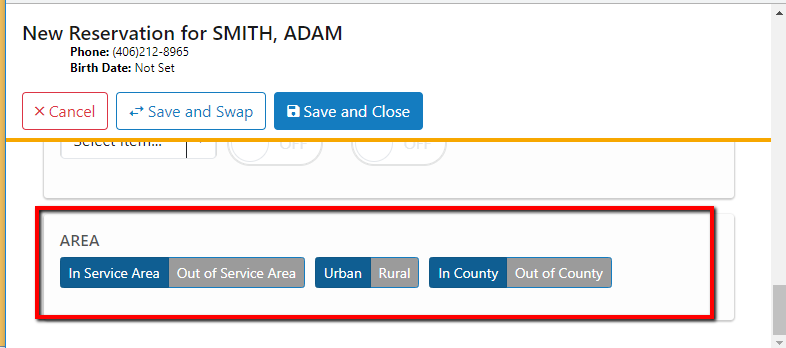
Area Section
This section is for selecting the service areas for the reservation. If your organization is interested tracking reservations that are in/out of service area, urban/rural, in/out of county, this is where you would set those values for reporting.
Feedback
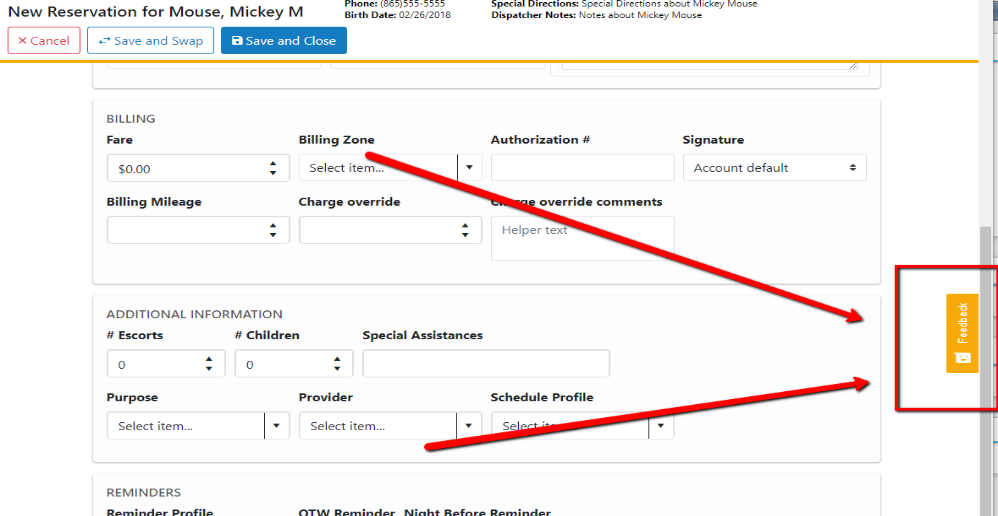
Your feedback on the beta Reservation screen is important to us. Let us know if there is anything missing that you need to complete your daily work. Also, please let us know if there is anything confusing about the layout or fields.
We have created a feedback button to log any requests or comments. It is an orange button labeled “Feedback” appended to the right of the new beta Reservation screen: