
Overview:
This manual walks you through the column button called Trip Validation, which is where trip and ride data is entered. For companies using ParaScope, data is brought over automatically from the application, so Trip Validation is where mistakes are corrected.
Section 1: Trip Validation
To start, click the Trip Validation button on the Daily Schedule screen.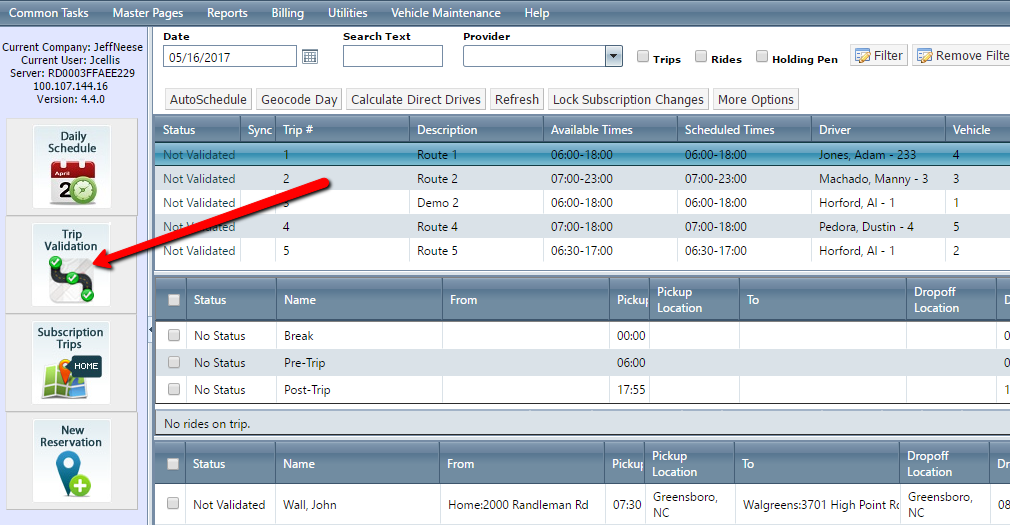
To enter data for a trip that needs to be validated, enter the date of the trip and hit Enter to pull up a list of trips on that date. 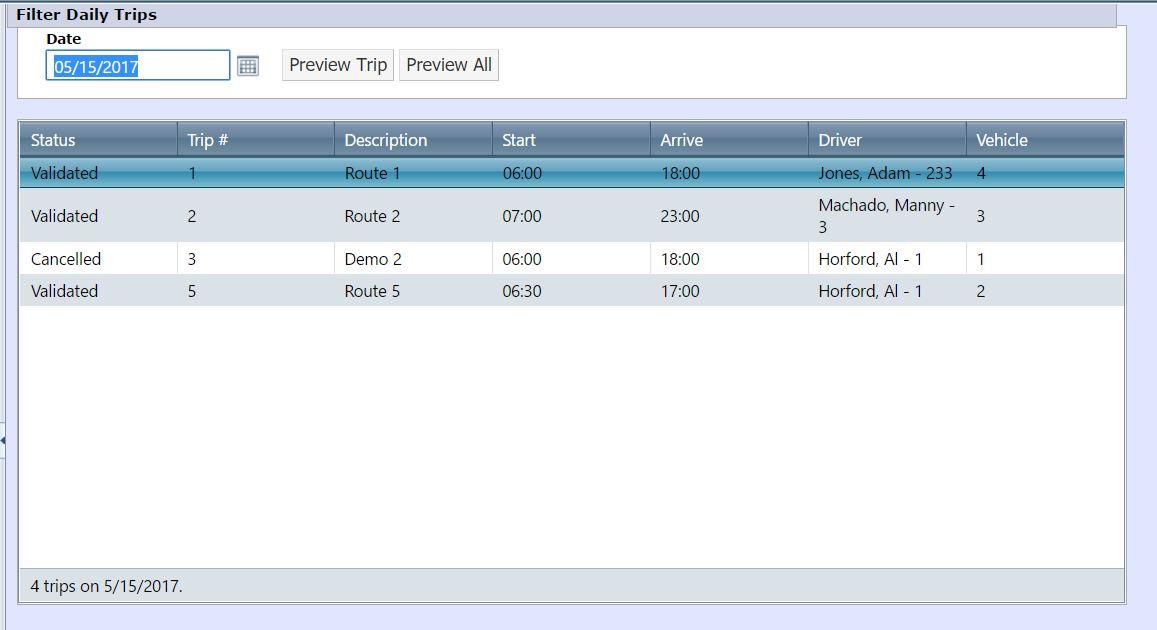
Then find the trip and double-click to open the validation page, which shows details about the trip and riders.
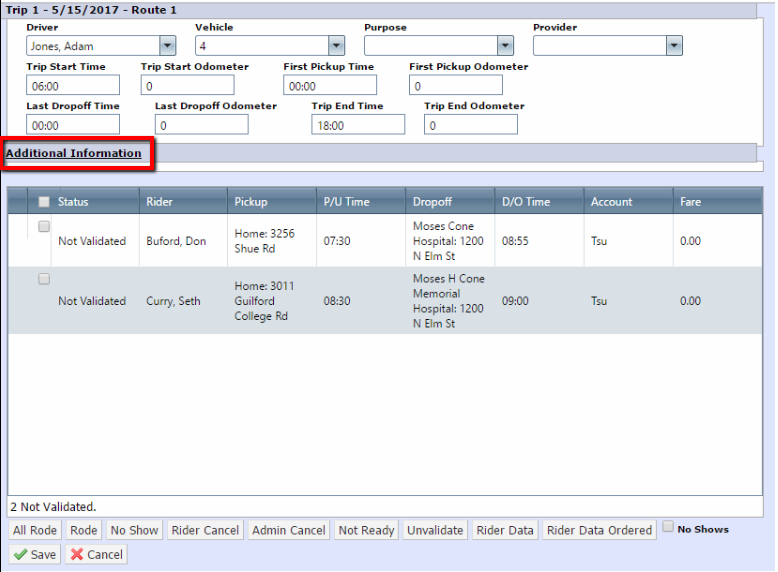
 Clicking “Additional Information” allows you to enter other optional ride details.
In the top section, be sure the correct driver and vehicle are selected. Then enter the Trip Start Odometer, First Pickup Time, First Pickup Odometer, Last Drop-off Time, Last Drop-off Odometer, Trip End Time, and Trip End Odometer.
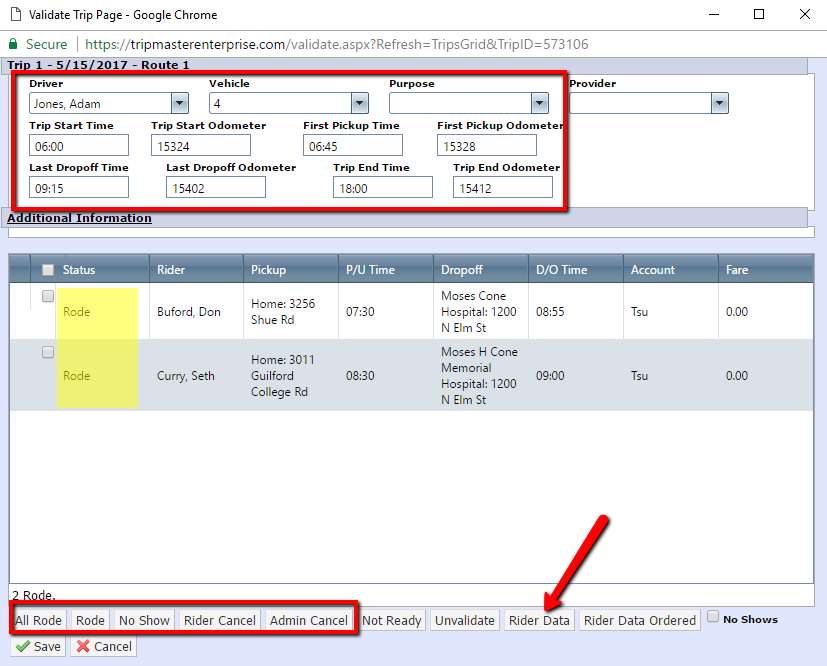
Next, validate each reservation as Rode, No Show, Rider Cancel, or Admin Cancel. Now select the Rider Data button to add pickup time, drop-off times, and odometers, then save.
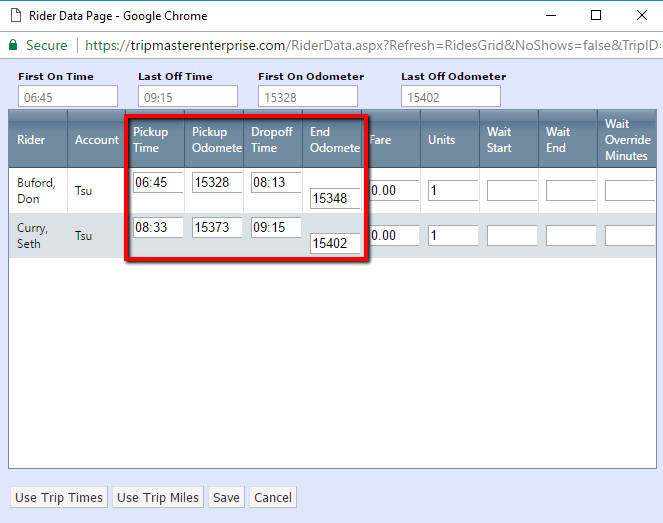
This brings you back to the Trip Validation page. Once all information is correct, save this page, and the rides and trip will be validated.
 Companies using ParaScope will already have data in Trip Validation. The validator will run audits (using the Audit tool in the Utilities menu in Daily Schedule) to find errors and omissions, and then go through the steps outlined above to make corrections.