Overview:
With Trip Master’s mobile app, ParaScope, your dispatchers can quickly assign rides to optimal routes. From the Daily Schedule and the Automated Vehicle Locator, they can see in real time where the driver is, if they are on schedule, and how long before their next scheduled job.
Section 1: Daily Schedule
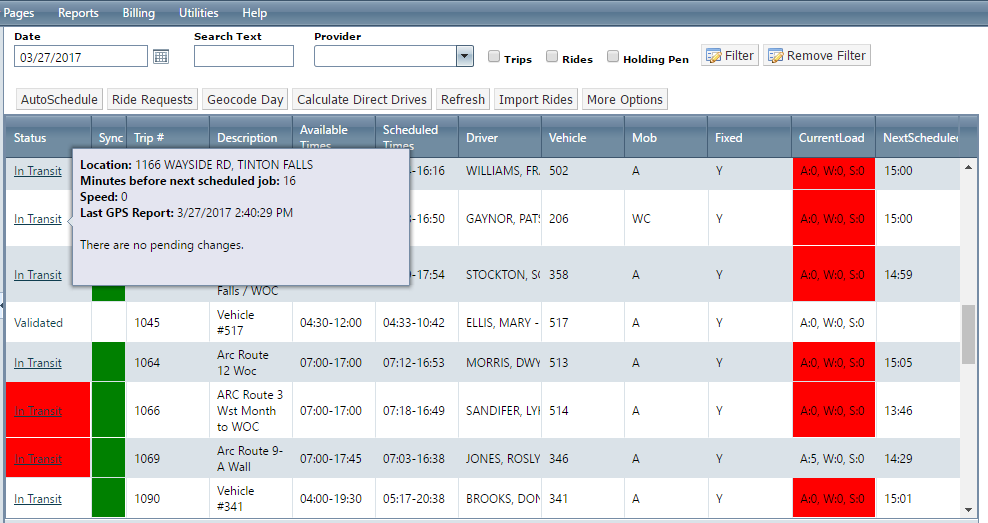
When a driver is logged into ParaScope, their route shows as “In Transit” on the Daily Schedule. By hovering over the words “In Transit,” the dispatcher can see the vehicle’s location, minutes before next scheduled job, speed, and last GPS report.
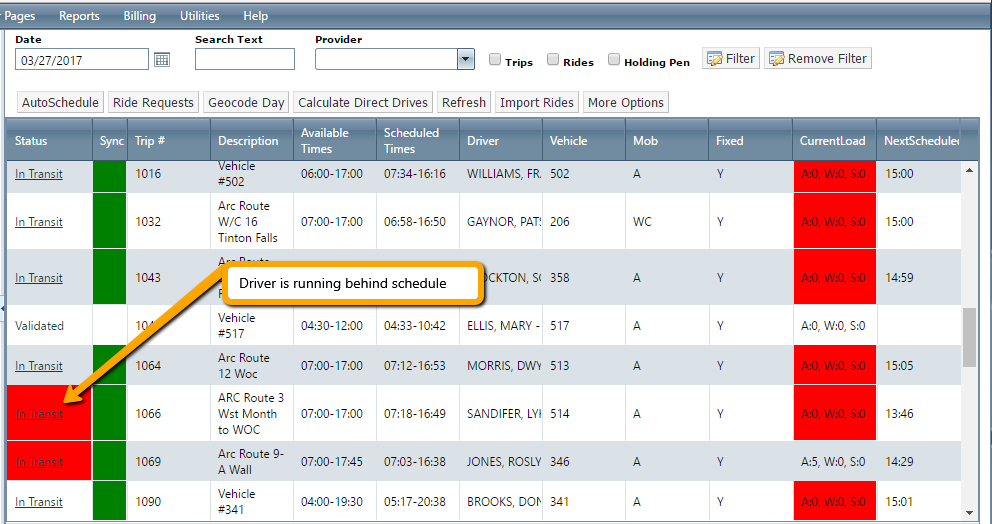
If the driver is running behind schedule, the “Status” column will be red.
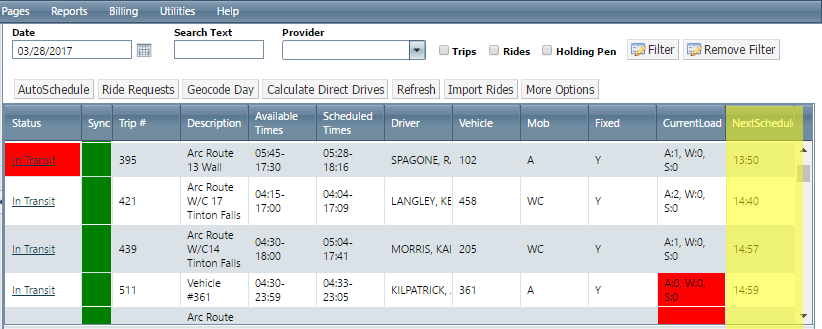
On the right side of the Daily Schedule window are columns for “Current Load” and “Next Scheduled Job.” The Current Load column shows how many ambulatory, wheelchair, and stretcher passengers are currently on the vehicle. If the vehicle is empty, the field will be red, and show “A:0 W:0 S:0,” meaning there are no passengers currently on the vehicle.

Beside “Current Load” is the “Next Scheduled Job” column. This lets the dispatcher know how long a driver has before their next pickup or dropoff, and is a quick reference to see whether that driver is available for an add-on.
Section 2: Automated Vehicle Locator (AVL)
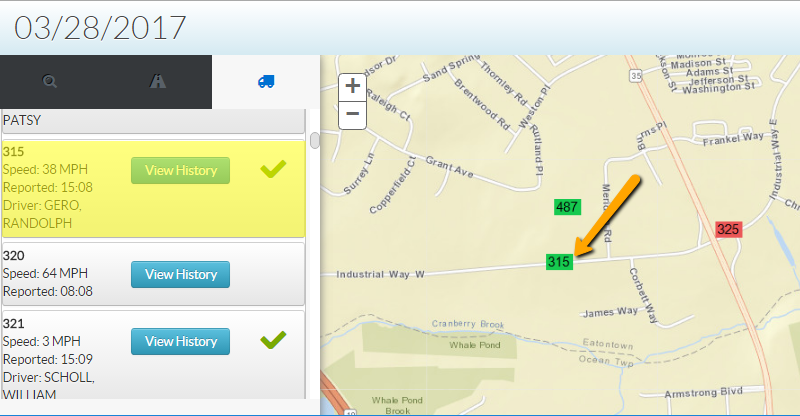
To pull up your AVL page, go to the “Common Tasks” menu tab and select “AVL.” This opens a standalone window showing all vehicles currently logged into ParaScope, and which can be left open for reference.
On the left of the screen is the vehicle number, the driver’s name, speed, and the last time the GPS reported. Any vehicle running behind schedule shows up in red on the map. When you select a specific vehicle, the map zooms into that vehicle’s location.
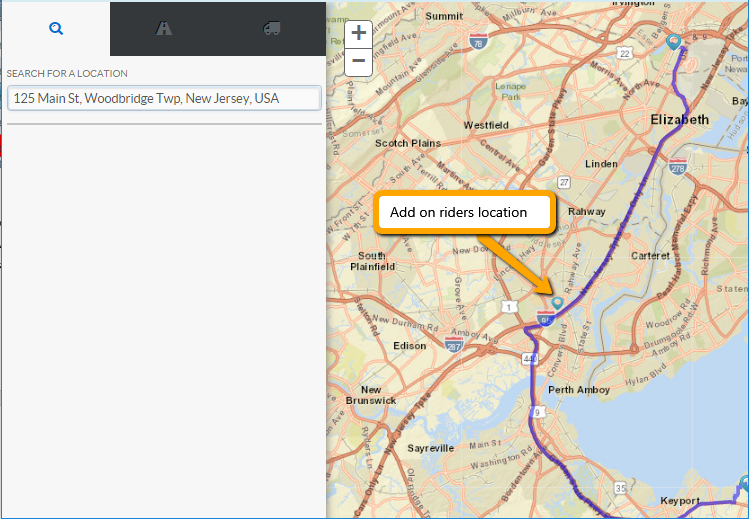
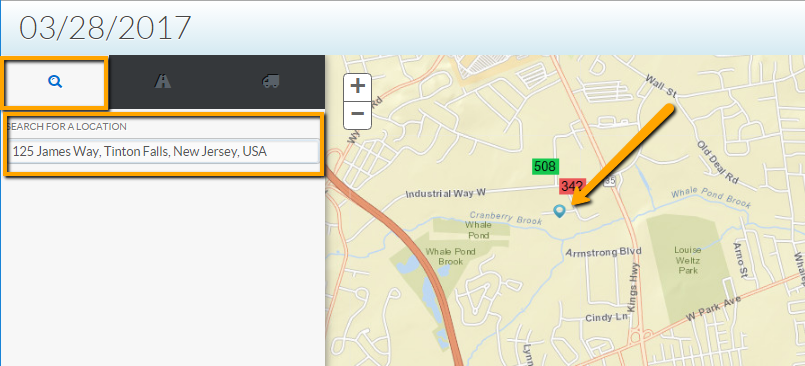
There is also the option to search for a specific location from which a client requests a pickup. Selecting the magnifying glass in the top left corner brings up an address search field. When an address is selected, a blue map point appears on the map, and the dispatcher can easily locate the closest driver.
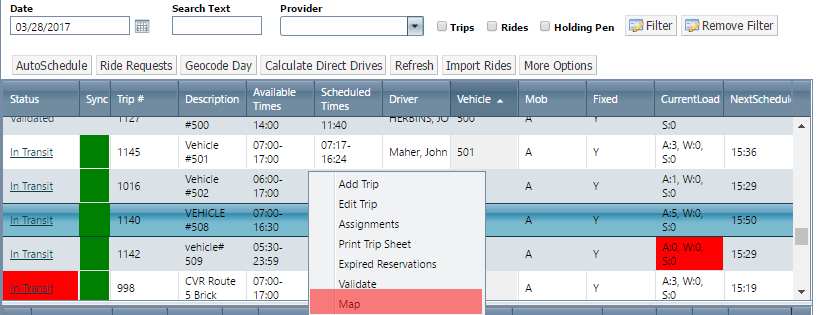
You can also do a map layover showing where a driver’s existing route is taking them in relation to a rider’s pickup location. To do this, right-click on the driver’s route on Daily Schedule to bring up the AVL page.
As before, select the magnifying glass and enter the address where the rider wants to be picked up. Now the map shows the driver’s new route with the map point showing where the add-on rider needs to be picked up.