
Overview:
The Account Master is the page in TripMaster where you enter billable and fare-based accounts/funding sources. This guide covers how to create different account types in TripMaster.
To Create a new Account, select Master Pages and then Account Master. The “+New Account” is in the top right corner of the screen.
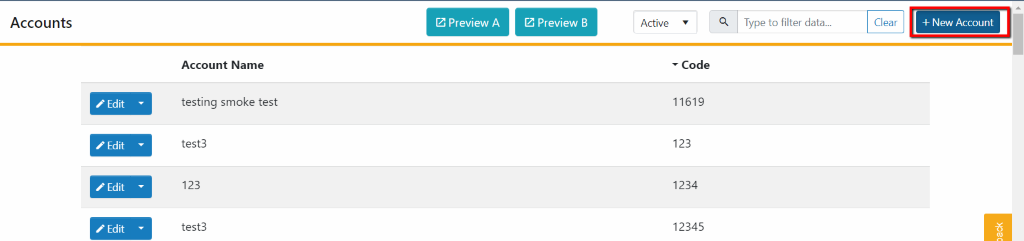
Section 1: Naming your Account

- Name: Identifies the account or contract name.
- This name must be unique and cannot be a duplicate of an existing Account Name.
- Code: An abbreviation or copy of the name that’s easily identifiable by reservationists. This will be displayed when creating reservations, on Daily Schedule, billing, and reporting.
- This code must be unique and cannot be a duplicate of an existing code.
- Agency: Selecting an agency will allow multiple accounts to be grouped together for billing and reporting. Agencies can be set up in Agency Master.
Section 2: Billing Methods
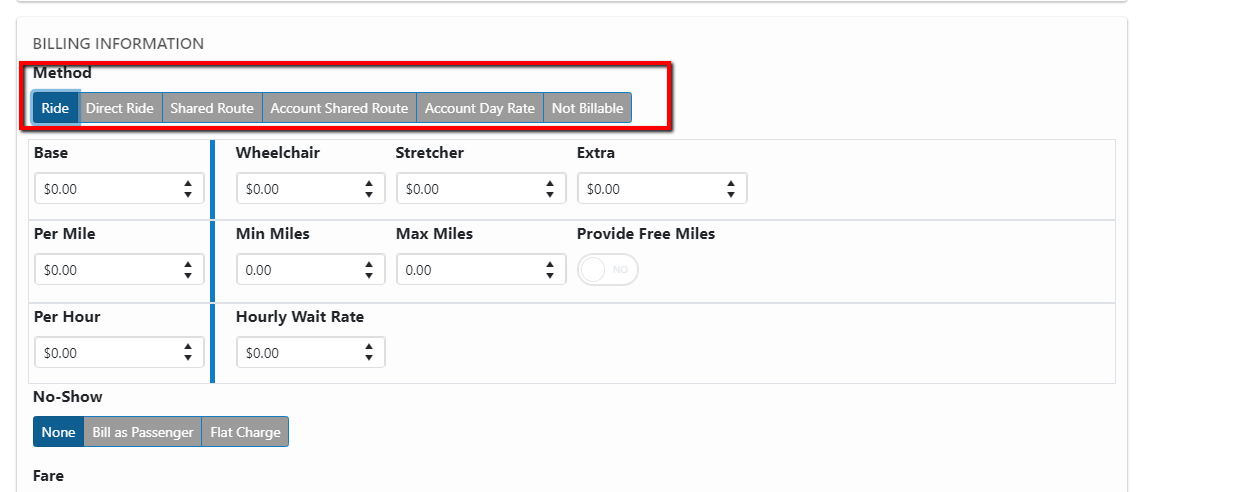
- Ride
The “Ride” tab is used to bill a flat one-way rate, passenger miles rate, and/or passenger hours rates. This will replace the Ride, Passenger Miles, and Passenger Hours radio buttons on the old Account Master.
- Note that Passenger miles/hours bills the entirety of the trip including all stops made between pickup and drop off.
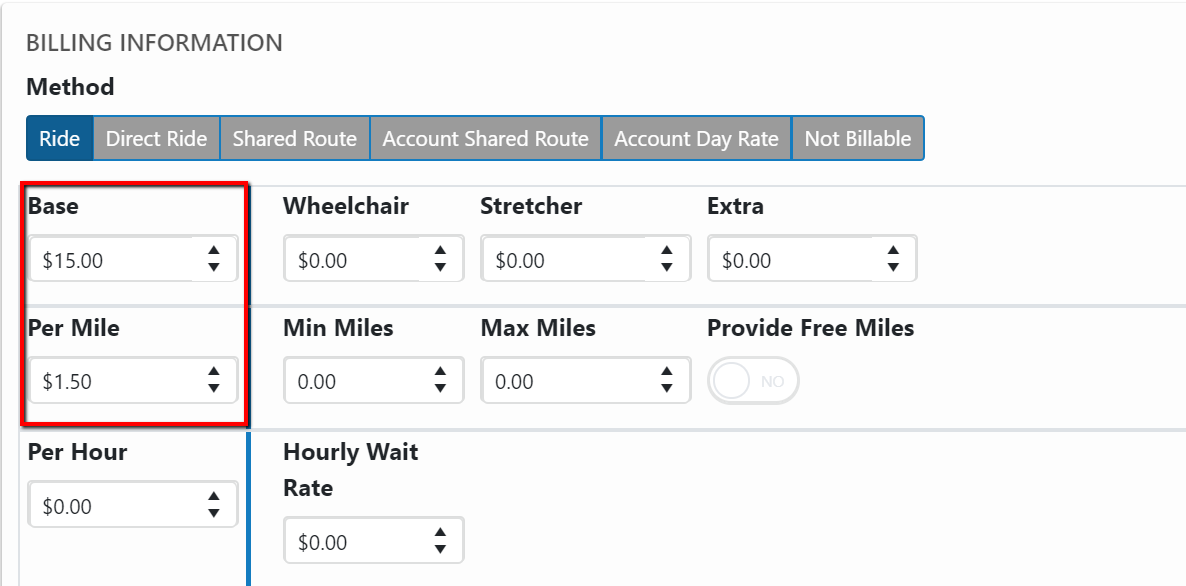
 This example shows $15.00 per ride AND a $1.50 per passenger mile.
- Direct Ride
The “Direct Ride” tab is used to bill a flat rate, direct mileage rate, and/or direct hour rate. This will replace the Direct Miles/Hours radio button on the old Account Master.
- Note that Direct miles/hours are calculated by the distance and time from point A to point B, directly, regardless of extra stops.
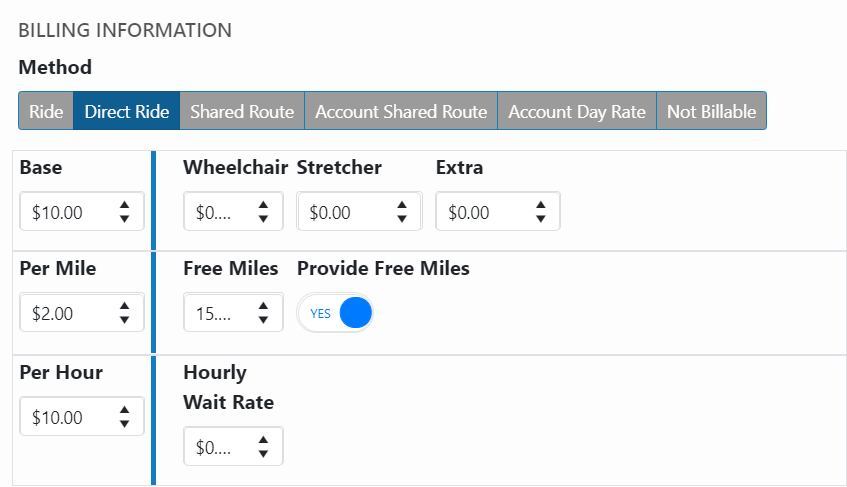
 This example shows $10.00 per ride, $2.00 per direct mile, and $10.00 per direct hour, and 15 free miles.
- Shared Route
The “Shared Route” billing method allows the route miles and hours to be split between all riders on that route regardless of account. The miles can be based from route start to route end, first pickup to last drop off, or first pickup to route end. The hours can be based on route start to route end or first pickup to last drop off. A base rate can be added with this billing method which can be split between passengers or charged to each passenger using the “Share Base” toggle. This will replace the Share Miles, Share Hours, and Share Trip radio buttons on the old Account Master.
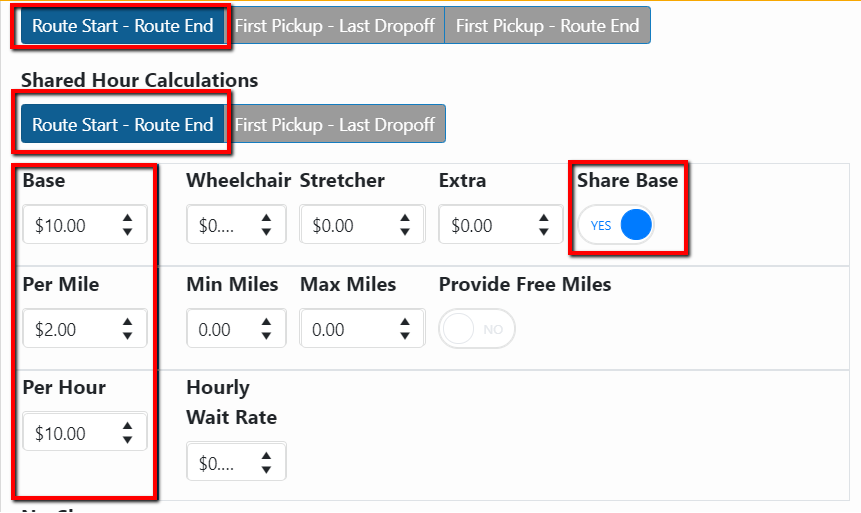
 This example shows a $10.00 base rate to be split between all passengers, $2.00 per mile from route start to route end, and $10.00 per hour from route start to route end.
- If the route traveled 100 miles in 10 hours with 10 riders each rider would be billed 10 miles, 1 hour and 1 dollar base rate.
- Account Shared Route
The “Account Shared Route” billing method allows route miles and hours to be split between passengers under a specific account. The miles can be based from route start to route end, first pickup to last drop off, or first pickup to route end. The hours can be based on route start to route end or first pickup to last drop off. Base rates will be split between all passengers riding on that route under that account. This will replace the Account Trip radio button in the old Account Master.
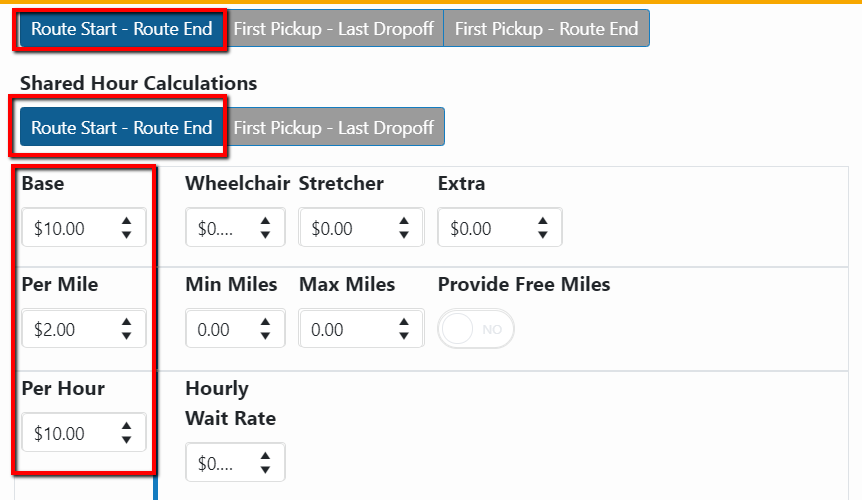
 This example shows a $10.00 base rate, $2.00 per mile from route start to route end, and $10.00 per hour from route start to route end.
- If the route traveled 100 miles in 10 hours with 10 riders 5 under this specific account each rider would be billed 20 miles, 2 hours, and a 2-dollar base rate.
- Account Day Rate
The “Account Day Rate” billing method allows a base rate to be split between all riders under that account regardless of how many routes are used. This method would be used for transporting a group with a total flat fee. This replaces the Special Day Trip radio button in the old Account Master.
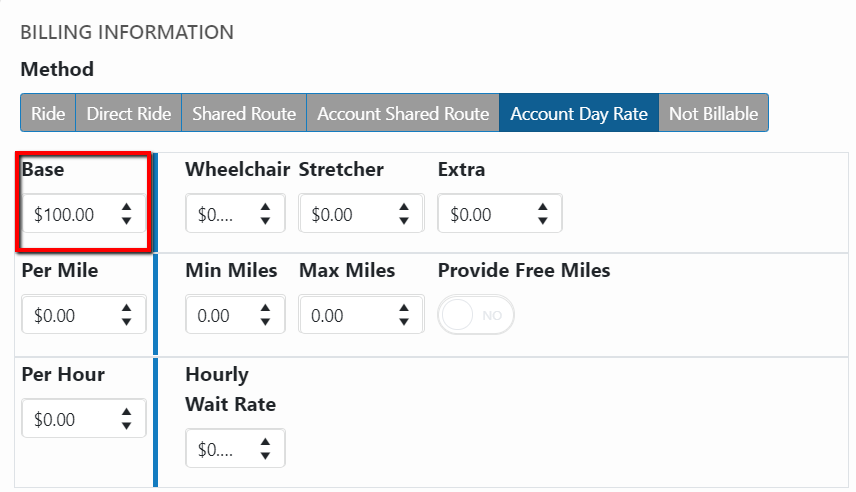
 This example shows a total fee of $100 split between everyone under this account.
- If 10 riders rode under this account each rider would be charged $10.00.
- Not Billable
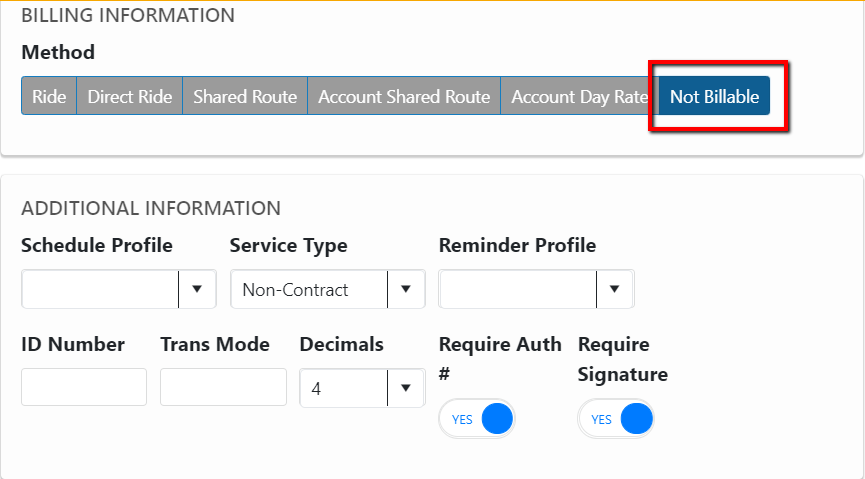
Choosing “Not Billable” indicates a bill will not need to be pulled, and no reservations will appear on billing reports or revenue reports. If reporting is necessary, choose the “Ride” tab with zero charges.
Section 3: Other Billing Options
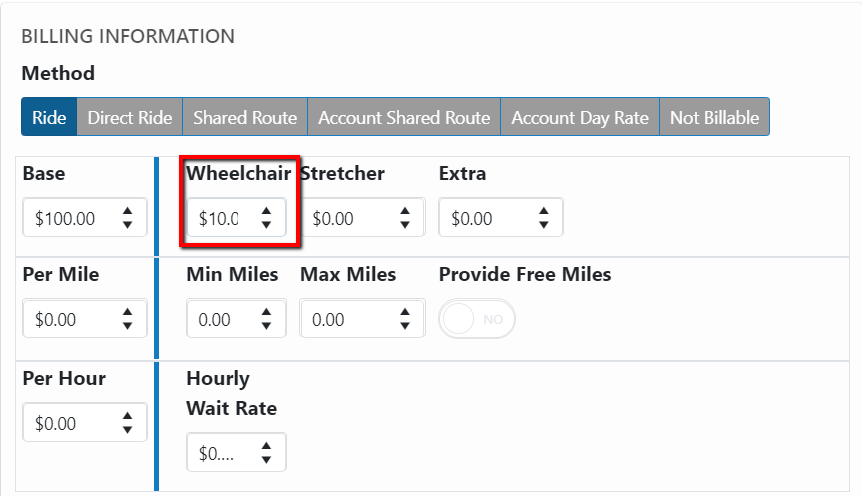
Wheelchair: For additional wheelchair flat fees enter the charge in the “Wheelchair” field.
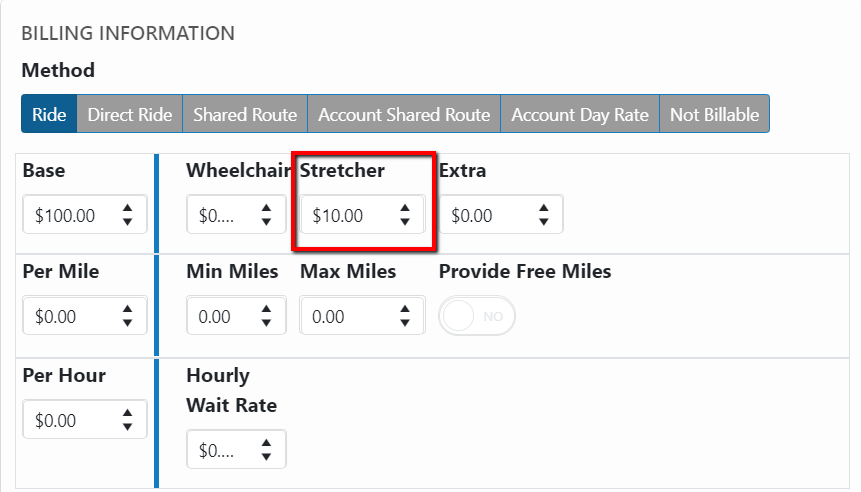
Stretcher: For additional stretcher flat fees enter the charge in the “Stretcher” field.
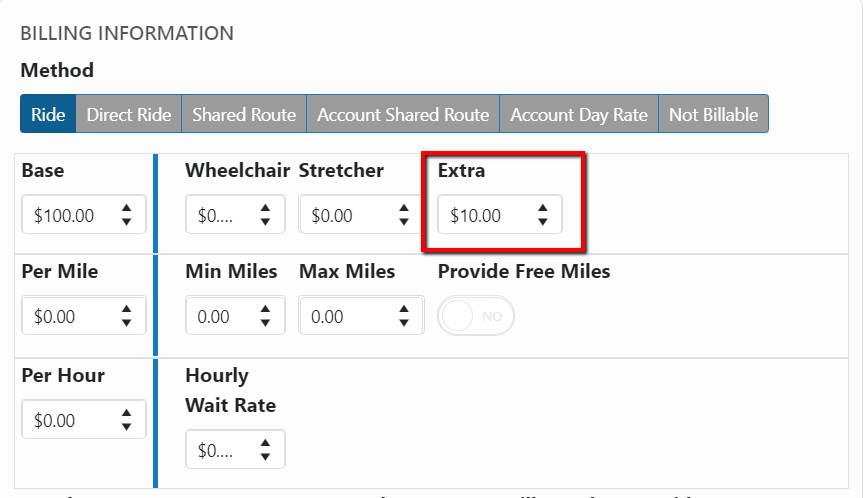
Extra: Additional flat charges can be added in the “Extra” field.
Min Miles/Max Miles: The “Min Miles” and “Max Miles” feature allows a minimum number of miles and maximum number of miles to be billed.
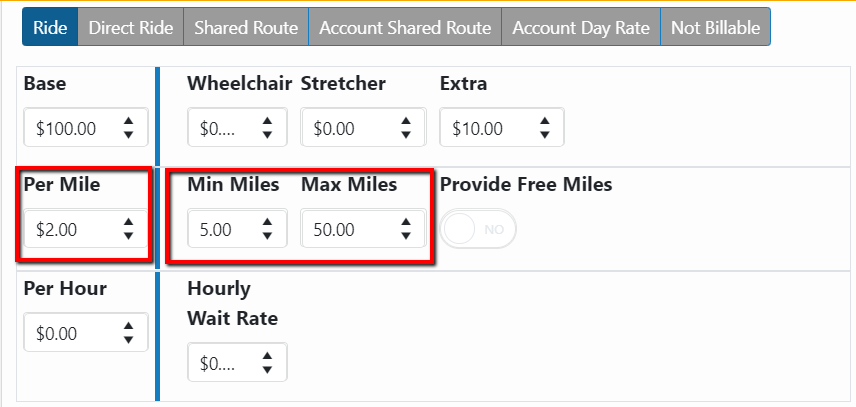
This example shows a $2.00 per mile charge with a minimum of 5 miles charged and a maximum of 50 miles charged.
Provide Free Miles: This feature allows a number of miles provided free prior to a per mile charge starting.
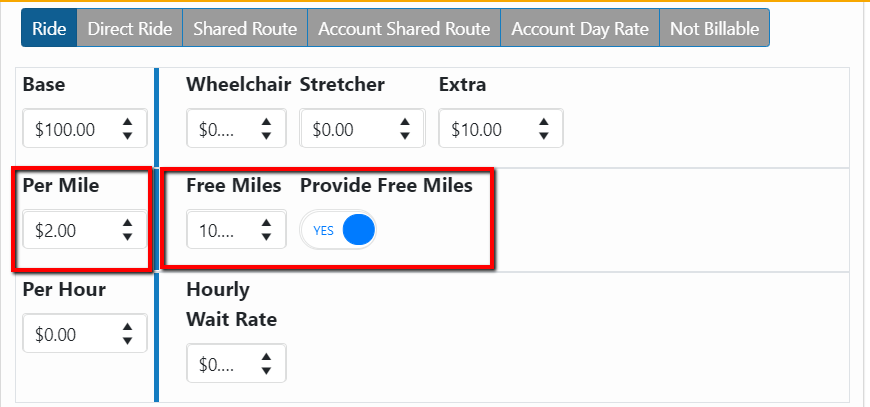
This example shows a $2.00 per mile charge starting after 10 miles.
Hourly Wait Rate: The “Hourly Wait Rate” field allows charges for route wait times, this will be added to each ride on that route.
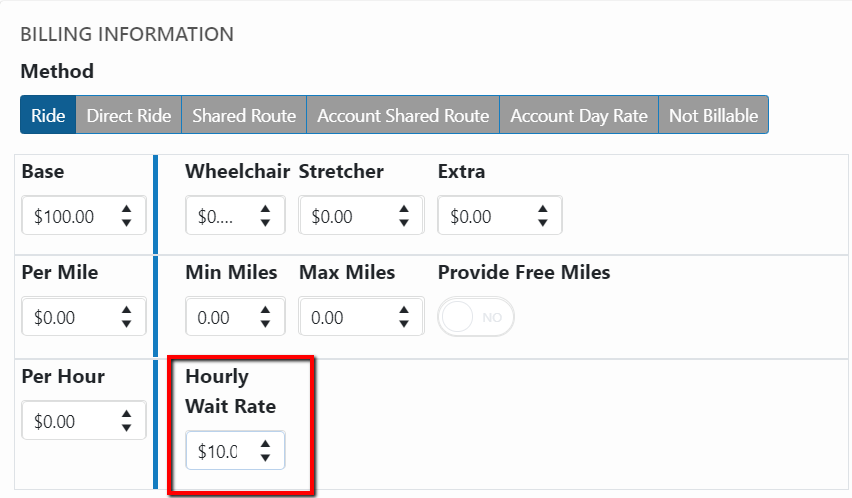
This example shows a $10.00 per hour wait charge that will be added to each ride.
No-Show: The “No-show” feature allows “None” no charge for no-shows, “Bill as Passenger” same charge as a ride, “Flat Charge” a flat fee per no-show, “Flat Charge” with “Bill No-Show as Passenger” toggle charges same as a ride plus a no-show flat fee.
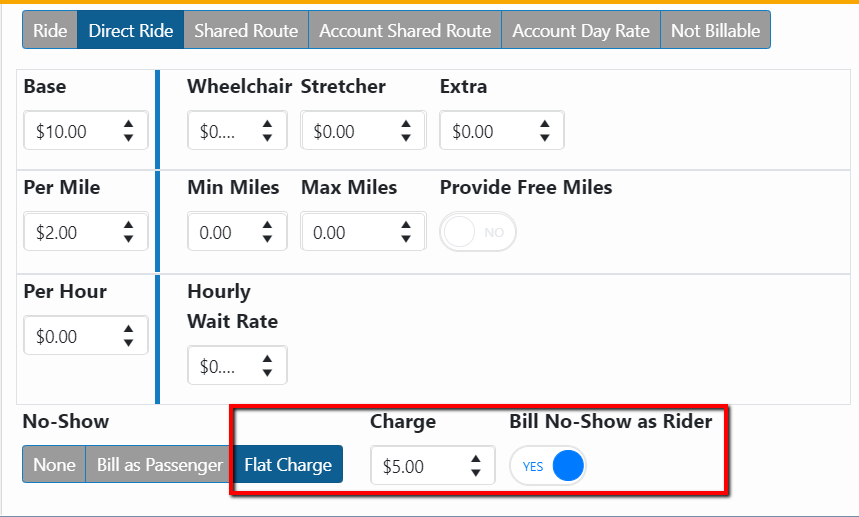
This example shows billing as passenger plus a no-show fee.
Fare: The “Fare” field allows cash fares to be added, this will reflect on the driver’s manifest and the ParaScope application. “None” no cash needs to be collected, “Additional Fare Charge” amount of cash collected per ride, “Deduct Fare Collected” subtracts the fare from the billing amount.
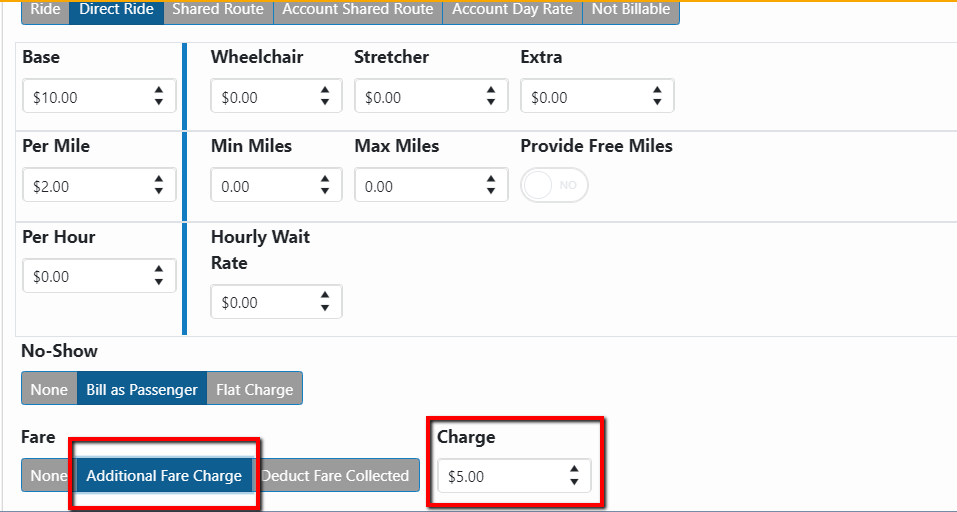
This example shows a $5.00 fare to be collected per ride.
Escort: The “Escort” field allows additional charges for escorts accompanying passengers. If you select “None” there’s no additional charge, “Bill as Passenger” indicates the escort will be charged as a passenger, “Flat Charge” an additional flat charge will be added, “Flat Charge” AND “Bill Escort as Rider” escort will be charged as passenger with an additional flat charge. This will replace the “Escort” check box under the charges section, and the “bill as passenger” checkbox in the charges section of the old Account Master.
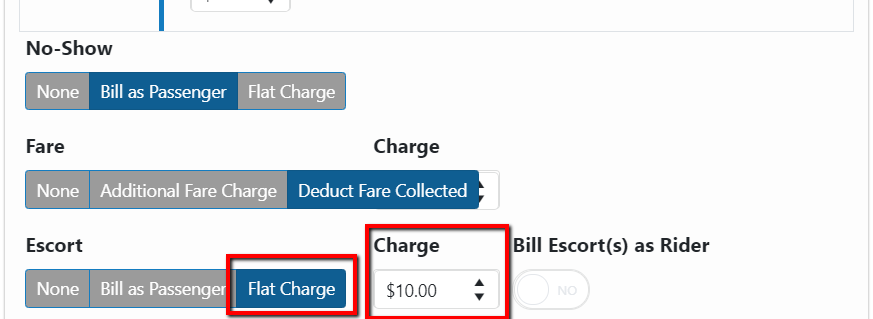
This example shows a flat charge of $10.00 for escorts.
Minimum/Maximum Charge: The “Minimum Charge” and “Maximum Charge” feature allows passengers to be charged a minimum and maximum amount.
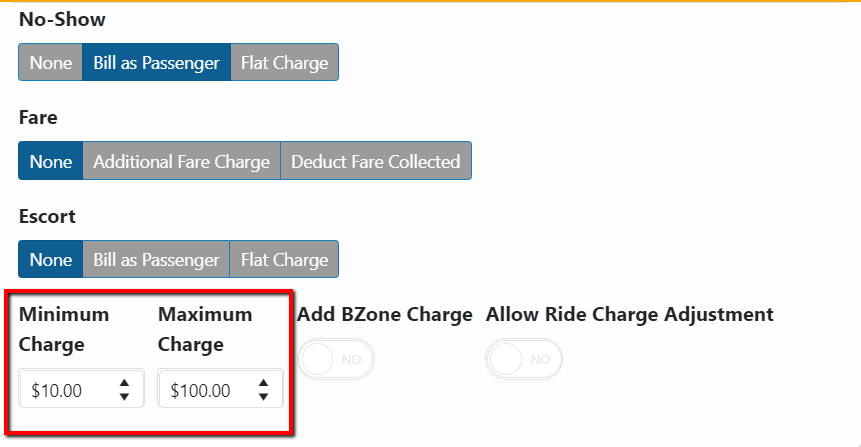
This example shows a minimum charge of $10.00 and maximum charge of 100.00.
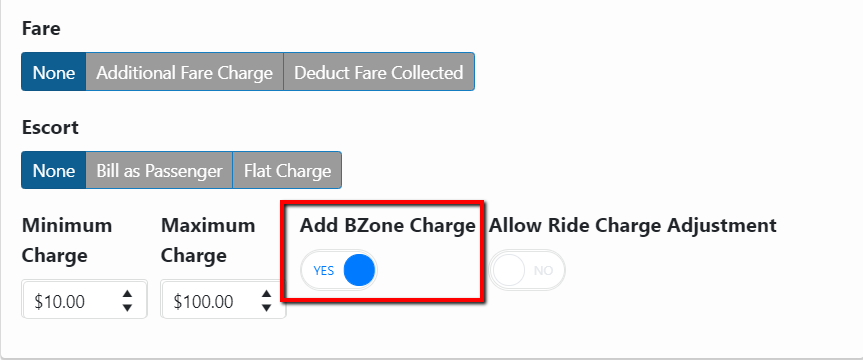
Add BZone Charge: The “Add BZone Charge” feature all Billing Zones or Bucket Rates charged for this account. For example, 0-3 miles charges $5.00, 4-6 miles charges $10.00. Toggle to yes for Billing zones to be enabled. This replaces the BZone check box in the old Account Master.
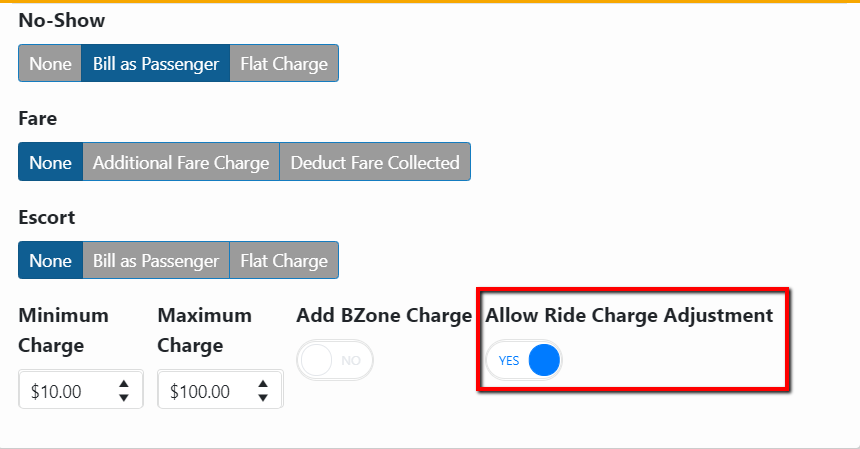
Allow Ride Charge Adjustment: The “Allow Ride Charge Adjustment” feature allows an additional charge to be added when creating the reservation. Toggle to yes to enable ride adjustments.
This replaces the Allow Ride Charge Adjustment check box.
Section 4: Account Settings
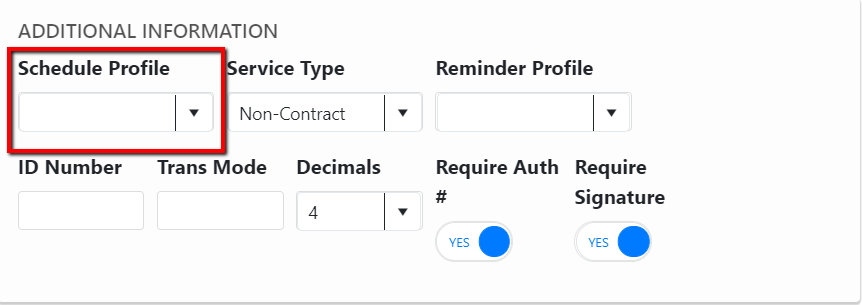
Schedule Profile: The “Schedule Profile” dropdown allows specific rules to be assigned per account when Auto Scheduling.
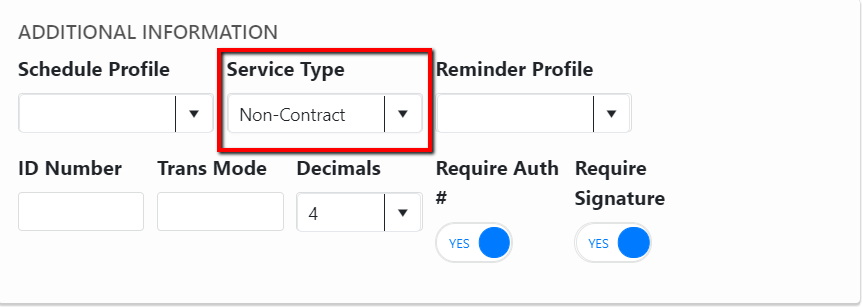
Service Type: The “Service Type” dropdown includes Non-Contract, Medicaid Contract, and Non-Medicaid Contract that’s required for some state reporting.
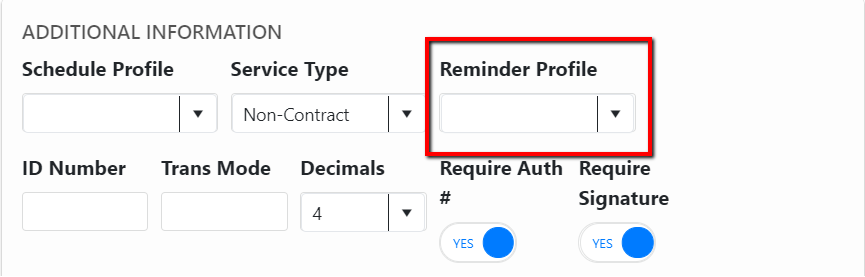
Reminder Profile: The “Reminder Profile” dropdown allows specific IVR calling times and messages to be set per account.
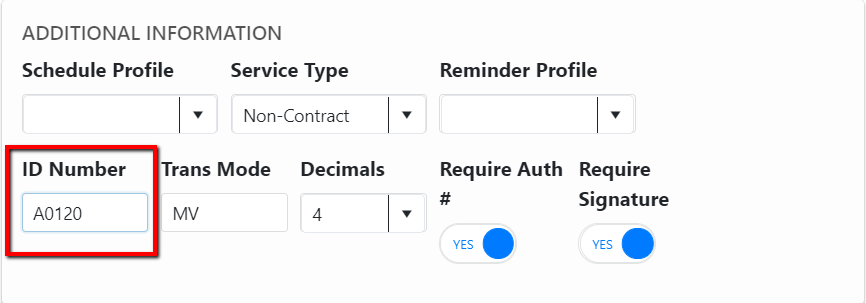
ID Number: The “ID Number” field allows codes for state Medicaid billing to be added.
Trans Mode: The “Trans Mode” field identifies specific vehicles for Florida billing and reporting.
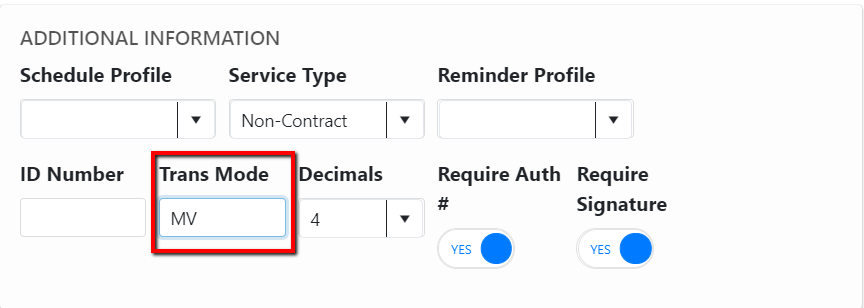
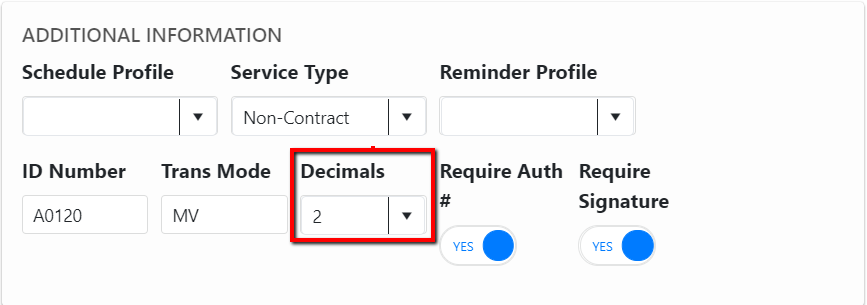
Decimals: The “Decimals” dropdown will reflect the decimal rounding for billing and reporting.
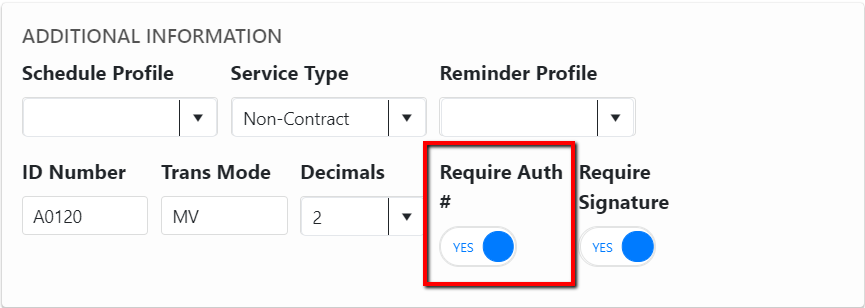
Require Auth #: The “Require Auth #” toggle indicates if that account requires an authorization number or trip number to be billed. Brokers such as LogistiCare require this for payment. To require authorization number, change the toggle to yes. This replaces the Require Authorization Number check box in the old Account Master.
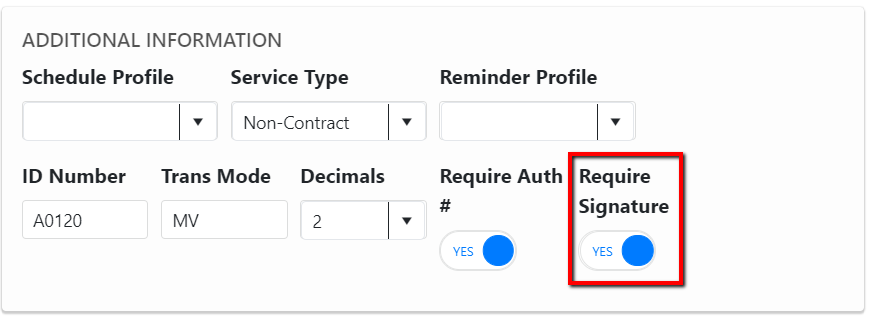
Require Signature: The “Require Signature” feature indicates the rider must sign when transported, this will require the driver to collect signatures when using the ParaScope application. To require signatures, change the toggle to yes. This replaces the Require Signature check box in the old Account Master.
Section 5: Additional Charges
+ Add Account Charges: The “+ Add Account Charges” feature allows additional charges for services such as oxygen or wait time. Mileage Rate, Direct Mileage Rate, Hourly Rate, Hourly Wait Rate, and Flat Charge options are available under the type dropdown. Enter the Description, Cost per Unit, Type, Code (Optional), Free (for any free units), Min (indicating a minimum charge), and/or Max (indicating a maximum charge). This replaces the Custom Charge section in the old Account Master. 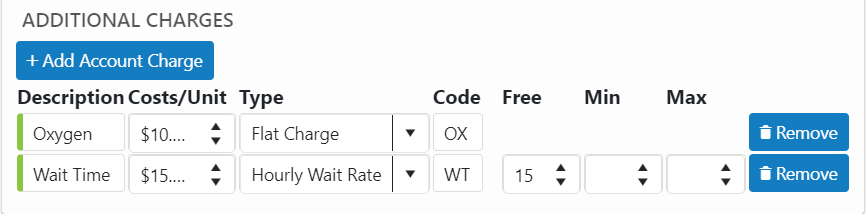
This example shows a $10.00 flat rate for oxygen and a $15.00 per hour wait charge with the first 15 minutes free.