
Overview:
For customers with rides brokered through LogistiCare, the new Billing Zone Audit and Prediction tool simplifies the process.
When you run the Billing Zone Audit, the “Apply BZone Predictions” tool allows BZones and Direct Mileage Overrides to be applied in bulk instead of individually. Setting it up takes a few minutes, but will save you hours.
Section 1: BZone Master setup
Set up your BZones using the BZone Master by going to:
- Go to Master Pages
- Select Billing Zone Master
- Click the “+ New Billing Zone” button at the top right.
The Name field is set up with LOS (Level of Service [ambulatory, wheelchair, etc]) and mileage range in an ABC 123-123 format. (Example: A 0-03 [ambulatory, 0 to 3 miles]) For “greater than” mileage, use a plus sign (Example: A 40-40+) to signify an open-ended range.
The Rate field is the Direct Mileage Override cost (in dollars) per ride. For the ride above, we will enter 4. So an ambulatory rider traveling less than 3 miles will be billed $4.
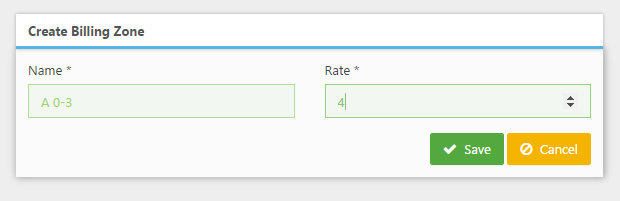
 The BZones must be set up in this format (ABC 123-123).
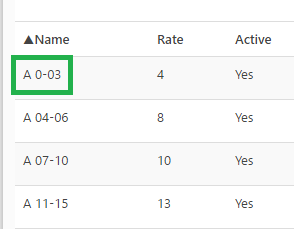
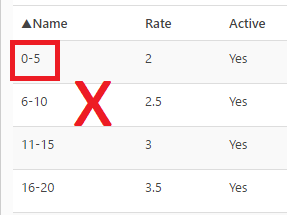
 When you have set up the master, look over it to ensure there are no gaps in miles or rate.
Section 2: BZone Audit
- Go to Utilities
- Select Audits
- Choose “Rides Missing
There are four columns on the Billing Zone Audit: Comments, Direct Mileage Override, Zone Prediction, and Rate.
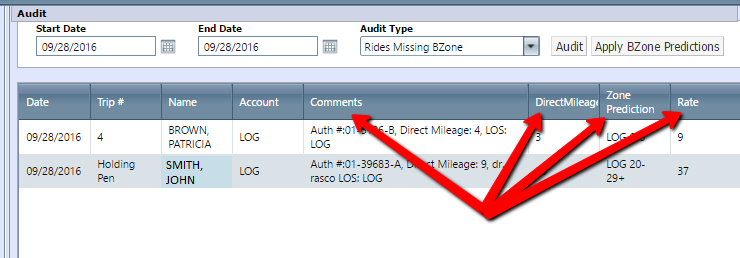
- Select the date range you want to audit, and click “Audit,” which will generate a list of reservations missing BZones.
- Then, click “Apply BZone Predictions,” and all reservations that meet the prediction criteria will have BZones automatically applied.
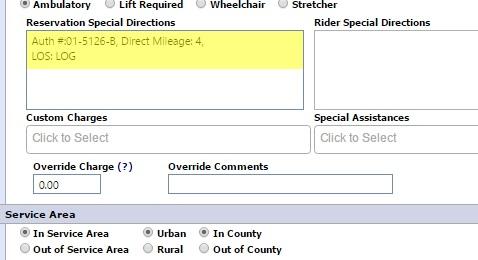
 For the Predictions to apply, the Reservation Special Directions on the imported reservation must contain “Direct Mileage: 123” and “LOS: ABC”, where ABC is the alphabetic characters in your BZones. This will be in the reservation at the time of import, and are in the Comments column of the BZone Audit.