Section 1: Enabling On The Way
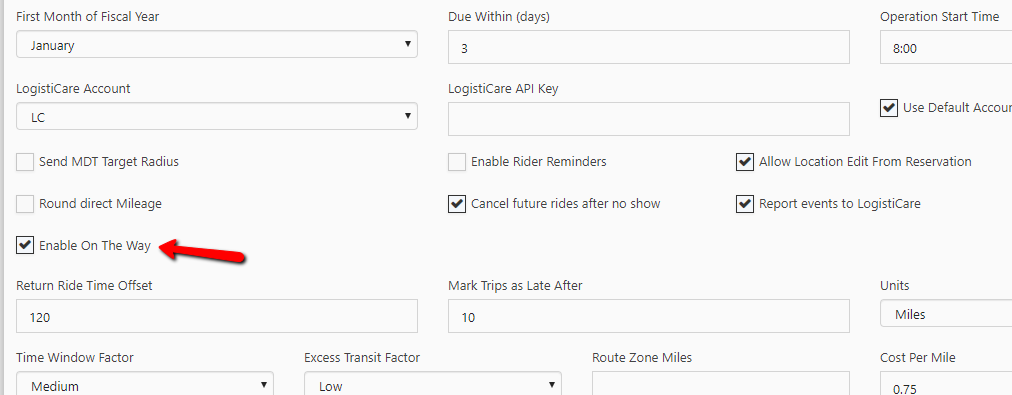
In order to use the new on the way function in TripMaster, you first must enable it in the Company Master, select Master Pages > Company Master, there you can enable On The Way.
Section 2: ParaScope
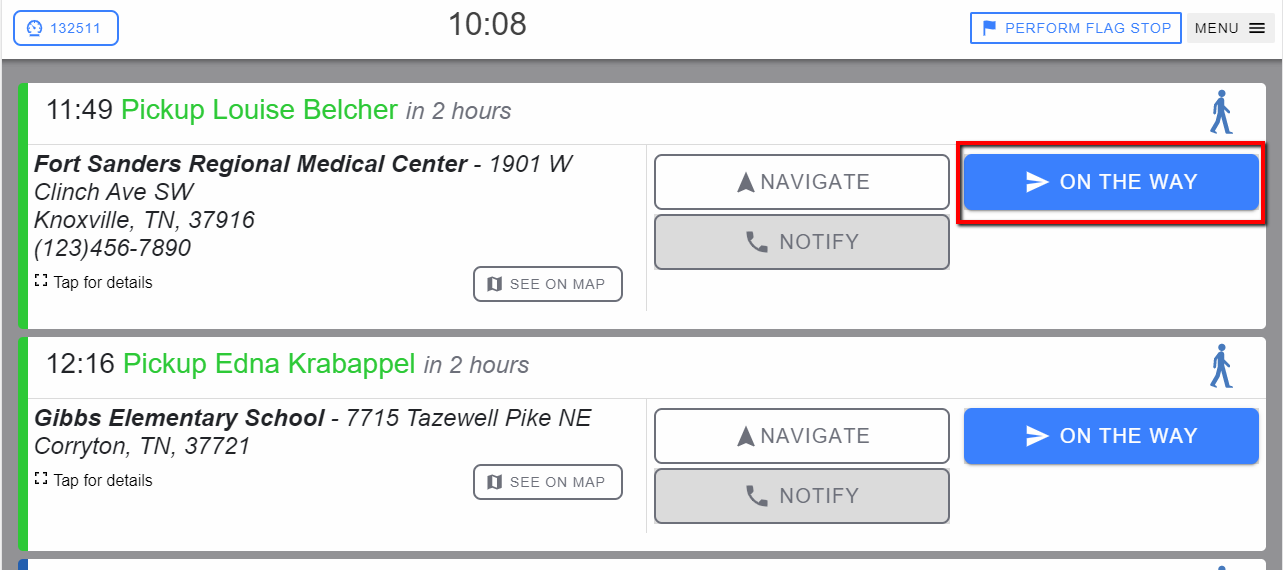
In ParaScope, the driver will now see the “On The Way” option to perform.
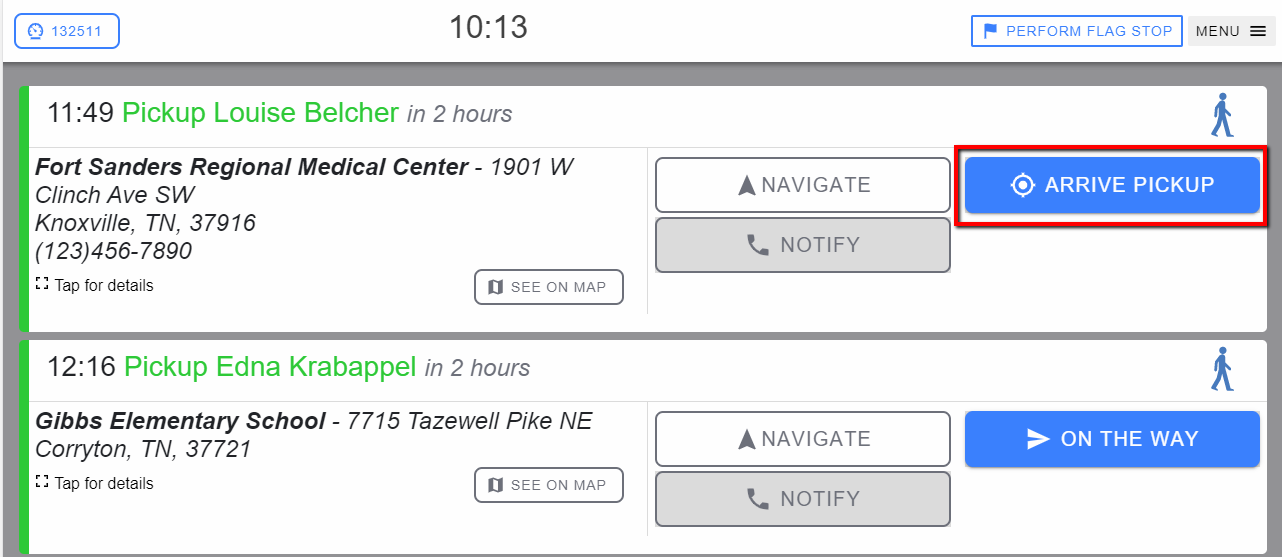
Once the driver selects that they are on the way, the button will allow them to “Arrive Pickup.”
Section 3: The Daily Schedule
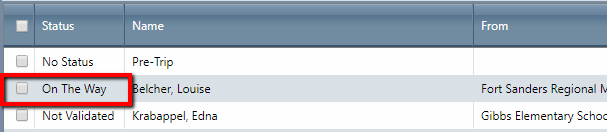
On the Daily Schedule, the dispatcher will be able to see the status change, when the driver performs the on the way function.
Section 4: Custom Reporting
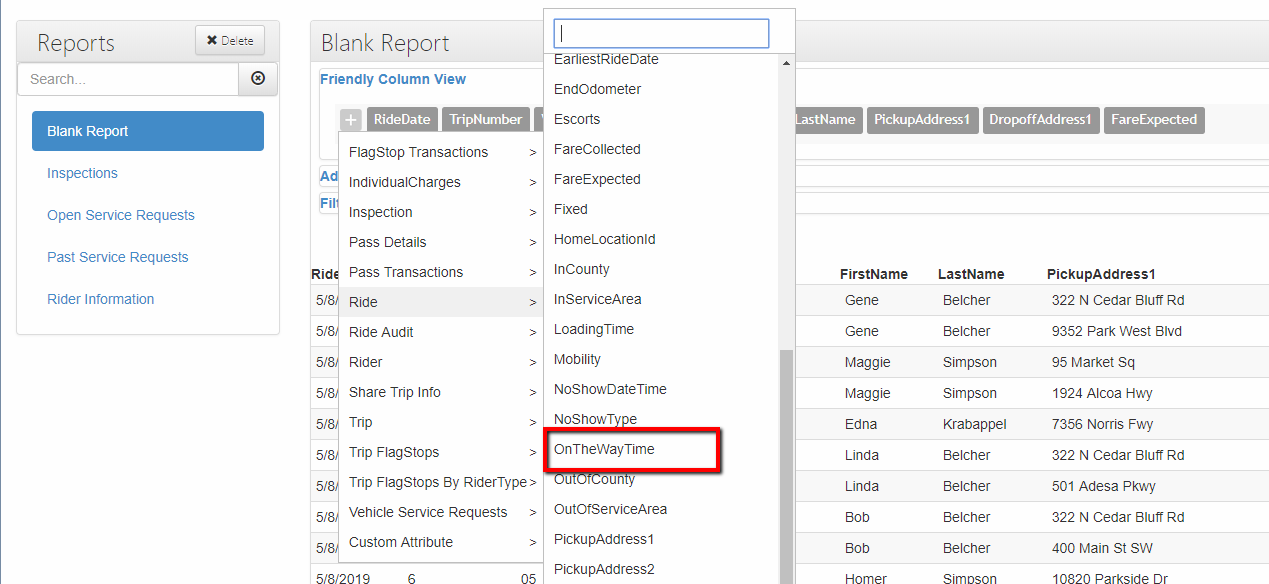
In Custom Reporting, we have added the ability to report on the “On The Way Time.” To add this column to a report, select + > Ride > OnTheWayTime. You can use this report to confirm your drivers are clicking the on-the-way button.
Section 5: Updating Tablets
To make sure you are on the latest version of ParaScope to have the on the way option available, follow the following tablet update instructions:
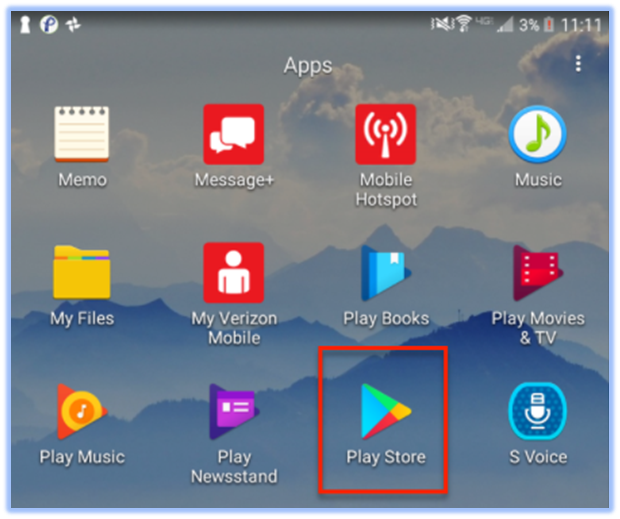
- Locate and launch the Play Store.
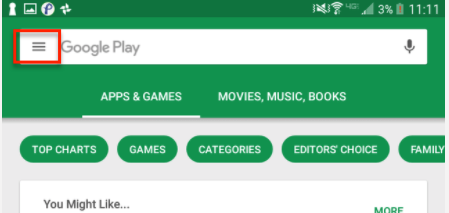
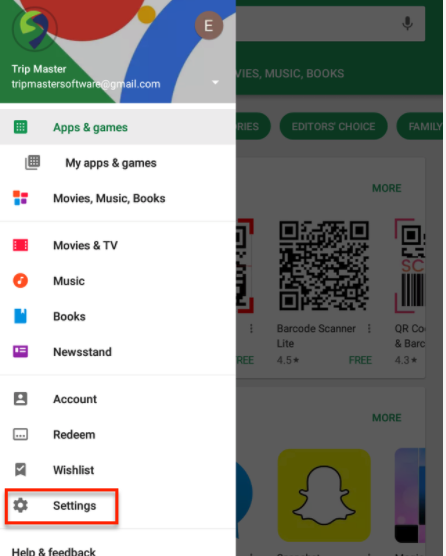
- Click the Play Store menu in the top left corner (three horizontal lines.)
- From that menu, select “Settings.”
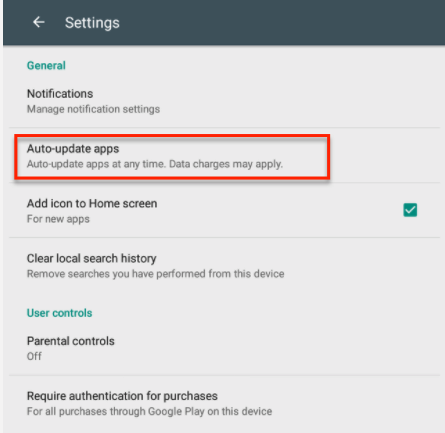
- From the Settings menu, select “Auto-update apps.”
- We recommend you choose “Auto-update apps at any time. Data charges may apply.” Your tablet will now update apps over Wi-Fi OR data, ensuring you are always up-to-date when new versions are released. If you must choose a different selection, see the steps below.
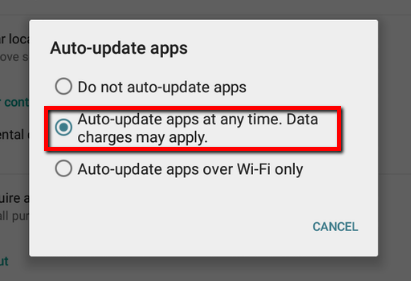
- If you choose “Auto-update apps over Wi-Fi only”, the tablet will not get updates unless connected to a WiFi network.
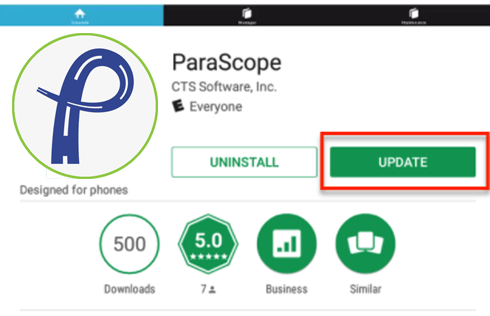
- If you choose “Do not auto-update apps,” you must update ParaScope from the Play Store manually, by searching “ParaScope CTS” in the Play Store and using the “Update” button.