
Overview:
This manual walks you through setting up your tablets’ home screens and settings for optimal use with ParaScope. Varying brands of tablets and operating systems often look slightly different; screenshots in this document are taken from the Samsung Ellipsis 4, but should be similar enough to show you the way for any Android-based device.
Section 1: Powering on and Choosing an Account
When you are ready to begin tablet setup, power on your tablet and review the following settings:
- Language: typically you will default to English.
- It will then ask you if you want to connect to WiFi. This is up to you, but depending on where you store your tablets and vehicles, connecting to WiFi can cause errors in validation. We suggest you turn this off and only turn it on as needed.
- Choose your timezone from the dropdown.
- Many tablets will then ask you if you want to sign in or create a new Samsung account. We suggest you choose the “Skip” button in the bottom right corner.
- Next, it will ask you about a Google account; you won’t be able to download apps unless you are signed in through Google. If your company doesn’t have one, we suggest creating a Gmail account for the tablets, like YourCompanyNameTablets@gmail.com. Save this information somewhere secure and accessible—you’ll need it in the future. We do not recommend using personal email addresses for tablet accounts.
- A maximum of 10 tablets can be logged into the Google account at a time. This doesn’t change how ParaScope works. If you are configuring more than 10 tablets, they will be logged out as the limit is reached. You will need to log back in for updates, and if you have additional Google apps to install.
- In the “Owner name” field, put in your company’s name.
Section 2: Clearing your Home Screen
Once you have finished the initial setup, you will see pre-installed icons on the home screen.
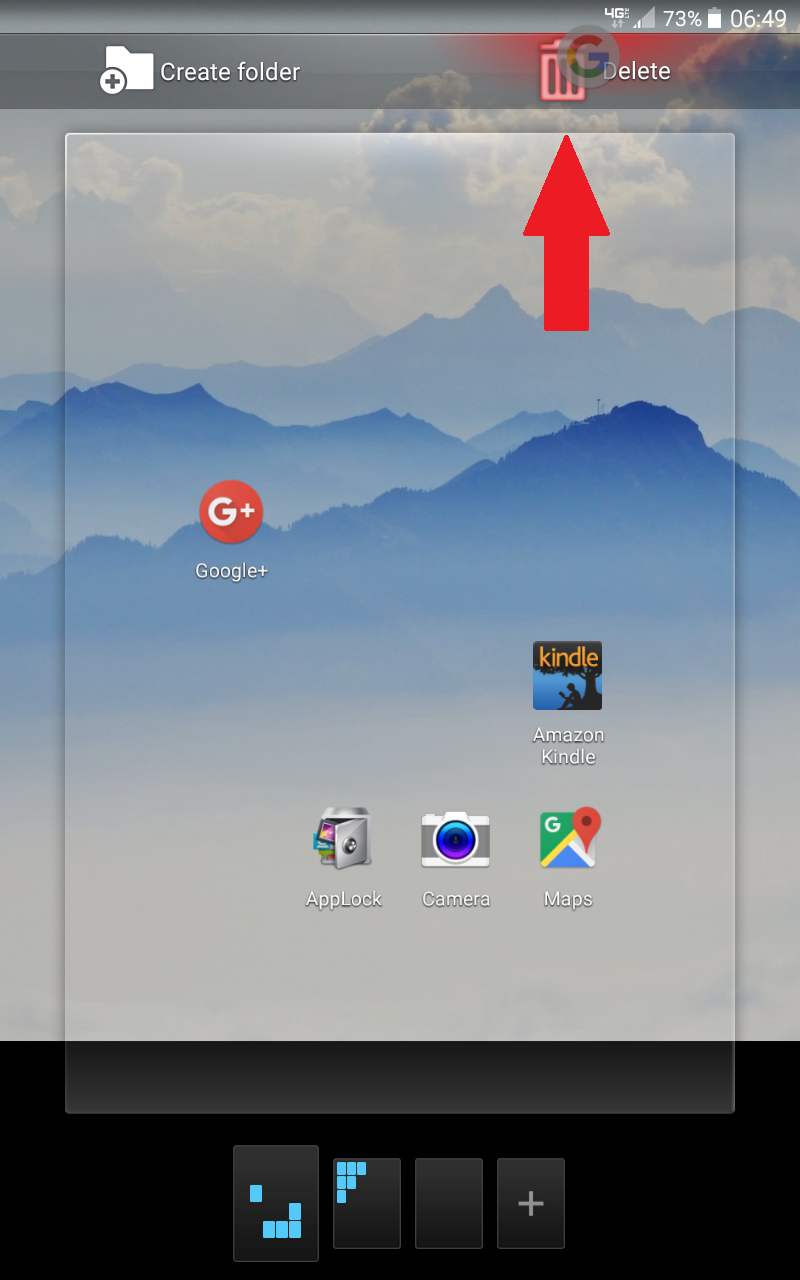
- First, clear the home page. To do this, hold down your finger on each icon and drag it to “Delete” at the top of the screen (the trash can icon.)
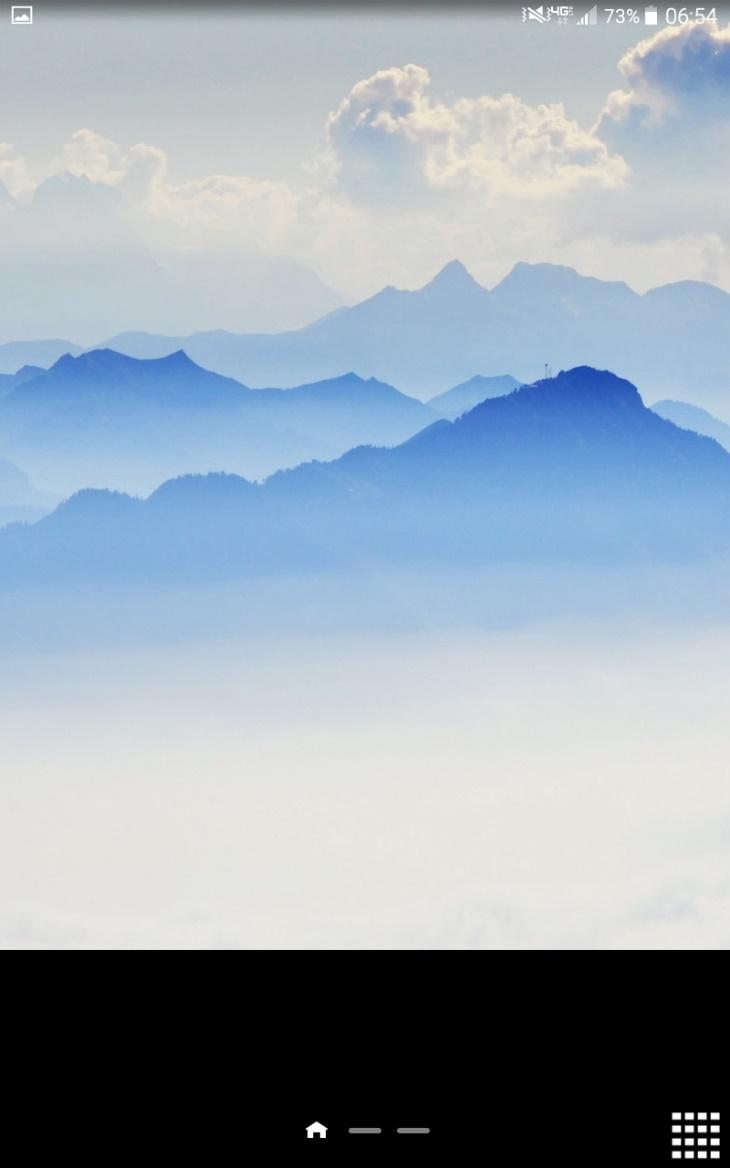
- Once you have removed the icons, you will be left with a blank home screen (mine has a picture of clouds on it) and the grid icon that is your apps menu.
Section 3: Tablet Settings
Now that the home screen is clear, we’ll adjust the settings.
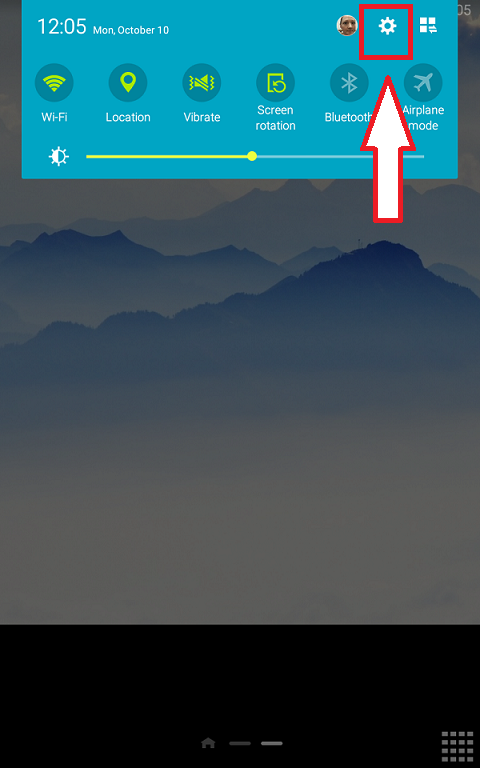
- Find the Settings application (it looks like a gear.) A quick way to find it is to swipe your finger down from the top of your screen to view the control panel.
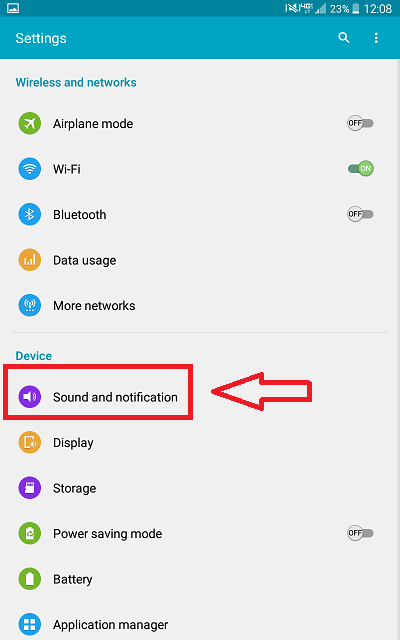
- Select “Sound and notification” from the device section.
- From this screen, you can adjust the volume and notification types. We generally use a unique or uncommon loud sound for notifications, so drivers don’t mistake them for sounds from their own phones.
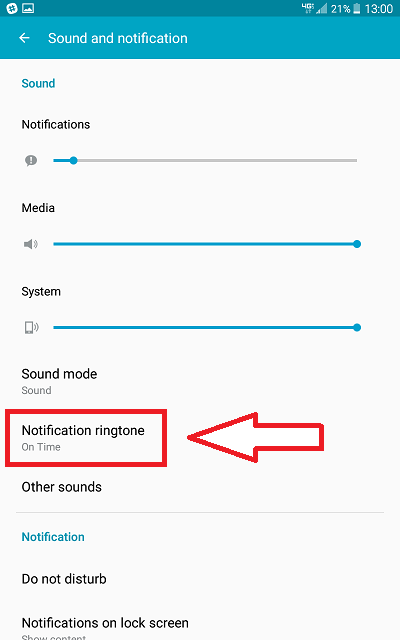
- Return to the settings main menu and select “Display” in the device section. Be sure the wallpaper pattern is neutral so icons are easier to see.
- Adjust the brightness. Glare from the sun can make it hard for drivers to see their screens, so make the screen as bright as possible.
- Set the screen timeout to 2 minutes to save battery and prolong the device’s life. When ParaScope is in use, the screen will dim but will not black out entirely.
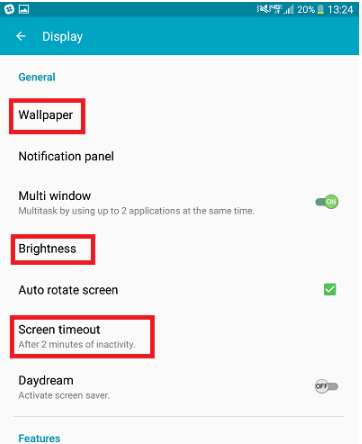
- Under “Location” in the settings main menu, be sure the toggle for “Location” at the top of the page is turned on and Mode is set to “High accuracy.”
- Turn on “Google Location History” if it isn’t already enabled.
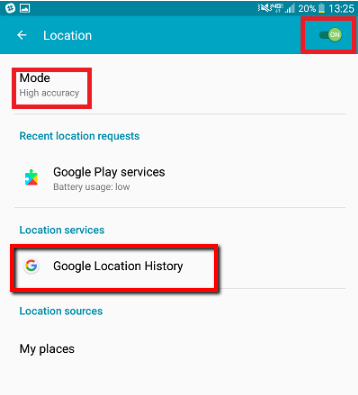
- Under “System” in Settings is “Date and Time.” We suggest using a 24-hour format, since TripMaster uses the 24 hour format exclusive.
Section 4: Pre-Installed Applications
The applications below are those you will use in your daily operations. Some programs you will use are pre-installed, but you will need to download a couple from the Google Play Store.
- Google Maps: pre-installed and found in your apps menu. To drag it to your home screen, hold down on the icon in the apps menu and drag it to the main screen. Open Google Maps and go through the initial settings so your driver can immediately use the program.
- Camera: pre-installed and found in your apps menu; can be helpful in documenting maintenance issues, accidents, or other incidents. The driver can take pictures but can’t open the gallery without the passcode to Norton App Lock (addressed in the next section.) This will also be an icon you can drag onto the home screen from the applications.
Section 5: Installing ParaScope
ParaScope is Trip Master’s mobile application for drivers. To install ParaScope on your tablet:
- Launch the Google Play Store
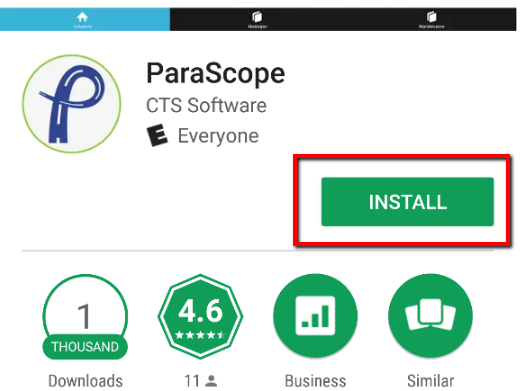
- Type “cts parascope” in the search bar, and click the result that looks like a blue P in a green circle (see photo below.)
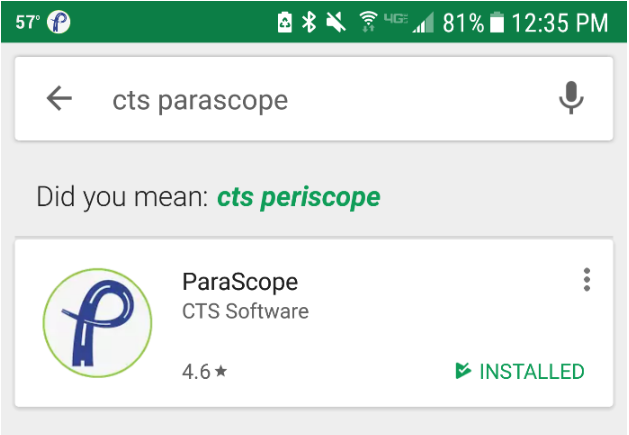
- Click the green “INSTALL” button (first image), and the green “ACCEPT” for the access permissions.
Section 6: Launching ParaScope and Setup
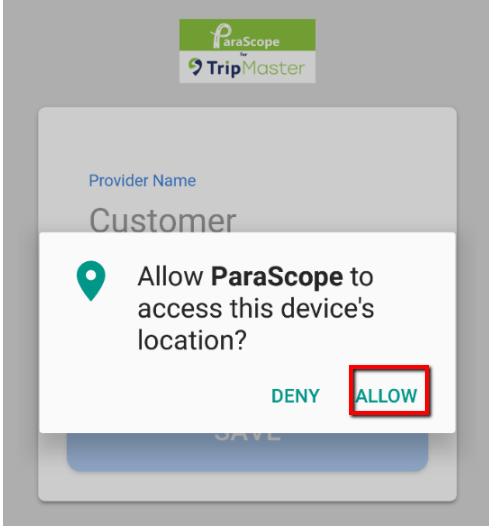
When you open ParaScope for the first time, it will ask you for permission to access the device’s location. Click “ALLOW,” or the app will not function correctly.
You will then need to enter your customer name and a device description (your customer name is beside “Current Company” at the top left corner of Trip Master’s Daily Schedule screen.)
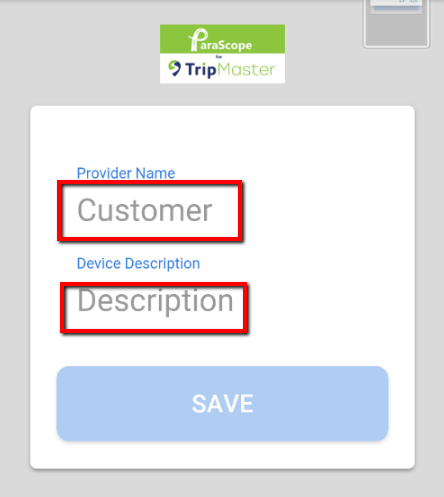
The device description is up to you (a number, a driver’s name, etc) but should be different for each device.
You can save once the customer name and description have been entered.
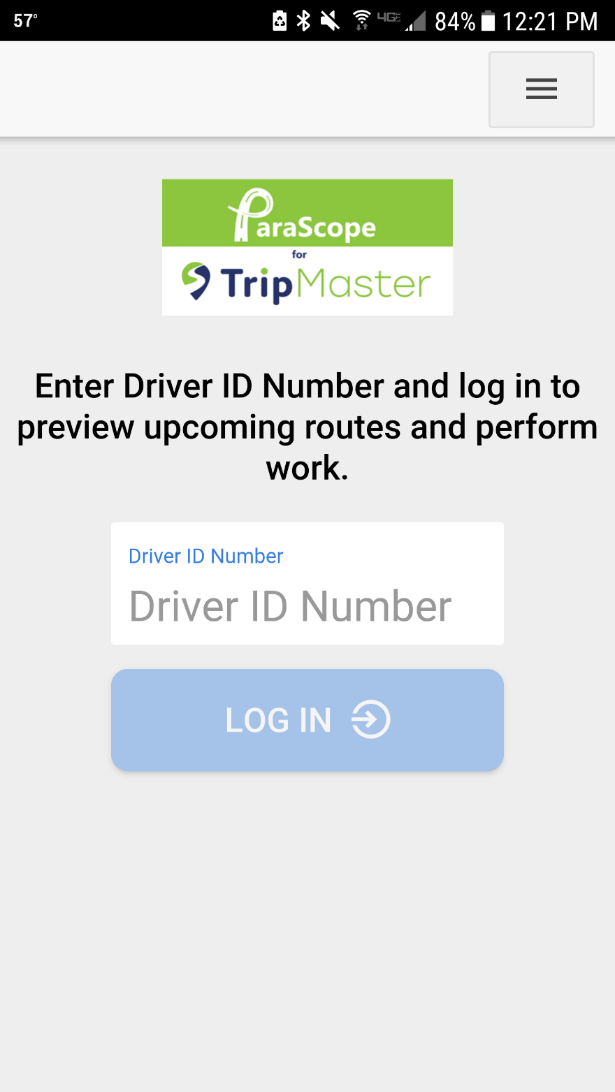
You will then be re-directed to the login screen for ParaScope. From this screen, your drivers will be able to login using their unique pin (setup in Driver Master in TripMaster.)
Section 7: Installing Norton App Lock
Norton App Lock will restrict driver access only to apps relevant to their work. To get to this app, follow these instructions:
- Launch the Google Play Store
- Search for “Norton App Lock” and select the application
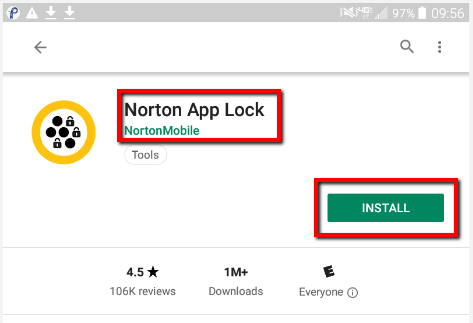
- Install Norton App Lock and open it—it will automatically walk you through the setup:
- Enable Norton App Lock Service when prompted:
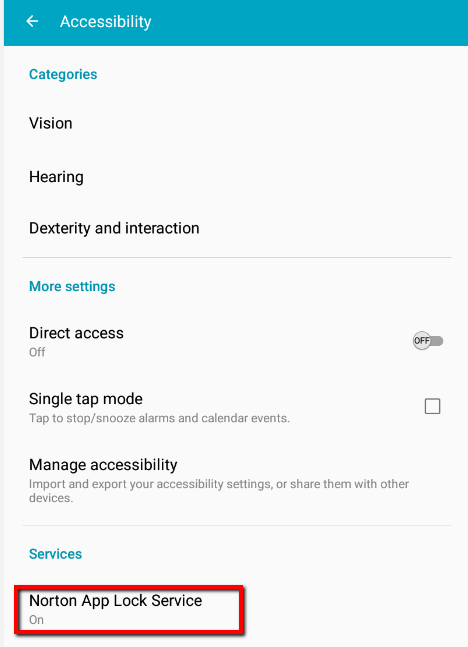
-
- Set your passcode (keep this information somewhere secure, you will need it.)
- Select which applications you want locked. Remember to leave ParaScope, the Camera, and Google Maps unlocked:
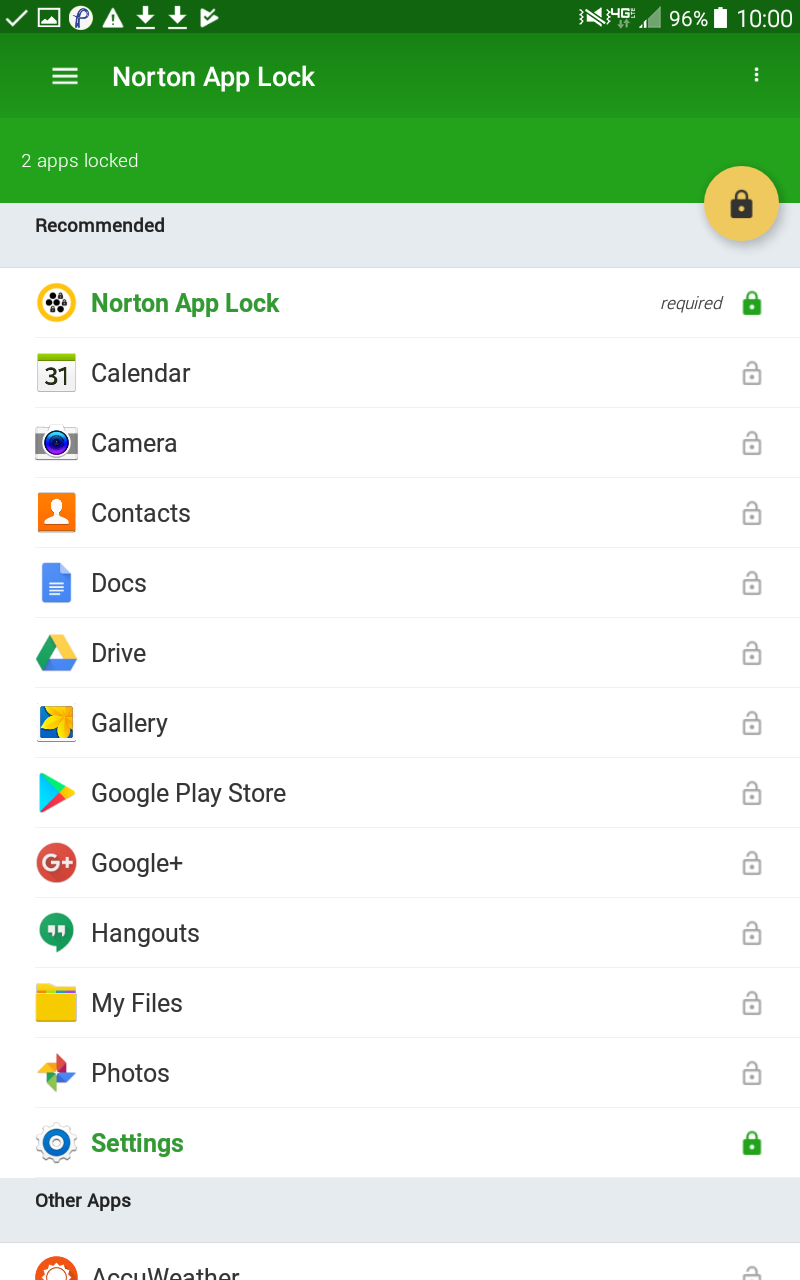
Section 8: Final look
Set the icons drivers will use on the home page (usually ParaScope, Maps, and Camera), and check to be sure things are locked with Norton App Lock. Below is an example of how I arrange the icons on the home page.
Once everything is set, power the tablet off and store it in a safe place. You’re good to go!