
Section 1: Boarding Preparation Minutes
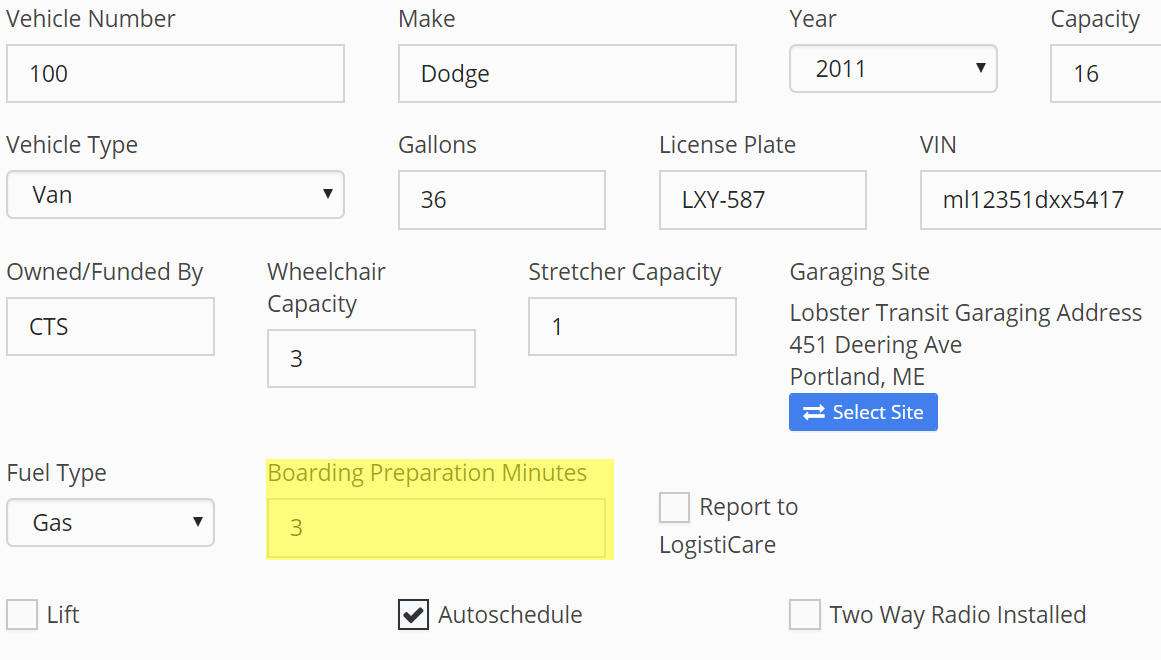
- Boarding Preparation Minutes is the first place the Auto Scheduler looks to add time at each stop. This is a baseline, allowing time for the driver to prepare the vehicle and the rider to get to the vehicle. This is found in Vehicle Master.
Section 3: Schedule Profile
- The Schedule Profile Master is where you add in additional time to board the vehicle and the windows limiting how long clients will ride and how early they can be dropped off.
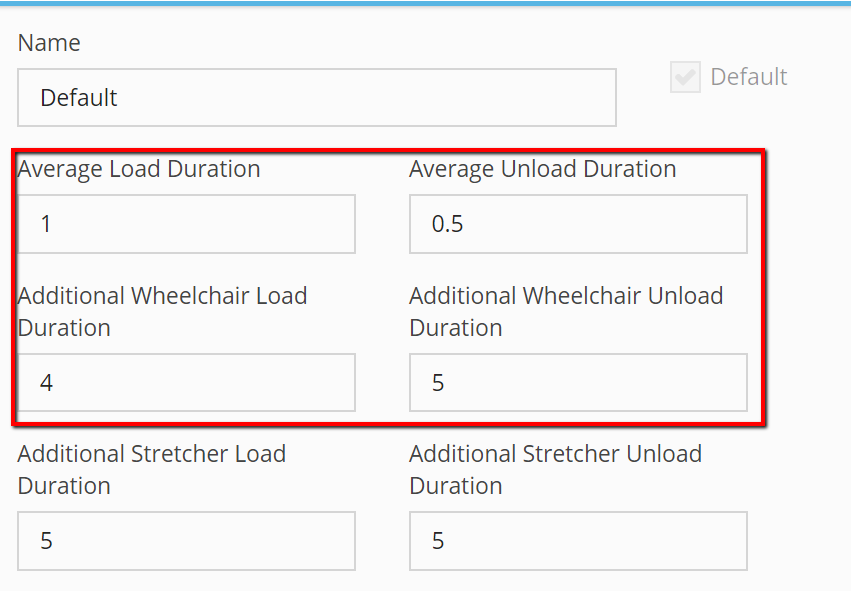
- Average Load/Unload Duration is added to the Boarding Preparation Minutes, this is for ambulatory passengers.
- Additional Wheelchair Load/Unload Duration is added to the Average Load Duration and Boarding Preparation Minutes.
- In the example below, we have 3 minutes for Boarding Preparation 1 minute for Average Load Duration and 4 minutes for Additional Wheelchair Load Duration. Each pickup for an ambulatory passenger will last 4 minutes, each pickup for a wheelchair passenger will last 8 minutes.
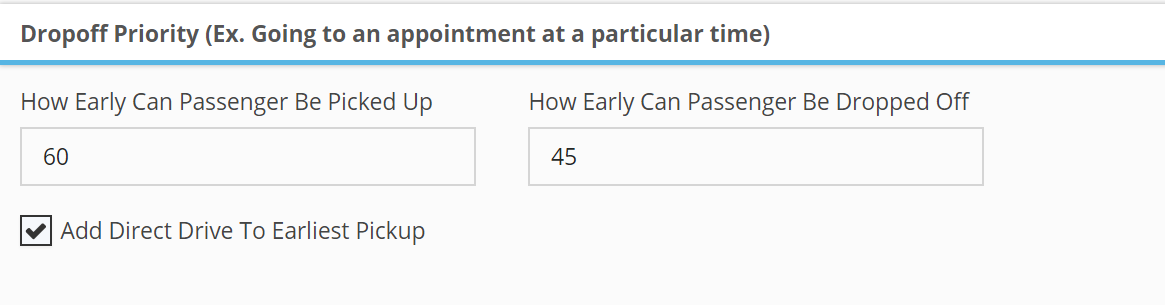
- The Dropoff Priority section will limit the time each rider spends in the vehicle and how early the rider can be dropped off before their appointment time. In this example the rider can be picked up 60 minutes prior to their appointment time plus the drive time from their house to the appointment location. The passenger can be dropped off up to 45 minutes prior to their appointment. If the rider has a 10:00 appointment and it’s a 30-minute drive, the Auto Scheduler is allowed to pick the rider up anytime between 8:30-9:59 to get the rider to the appointment no later than 10:00. The Auto Scheduler could drop the rider off at the appointment anytime between 9:15-9:59.
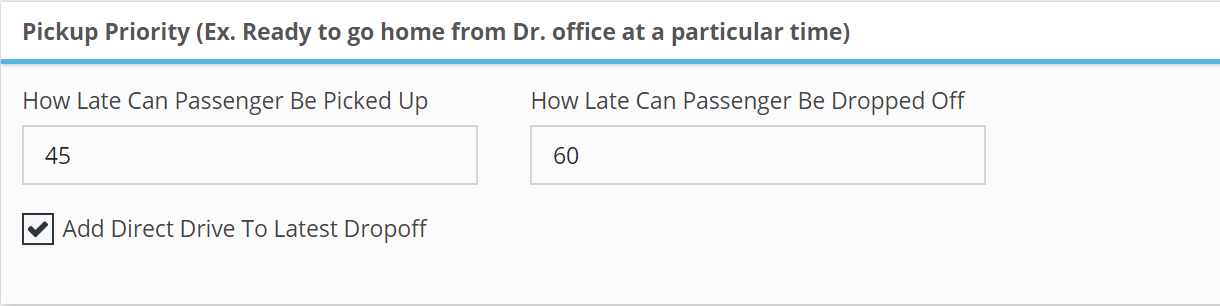
- The Pickup Priority section will limit how long the rider can wait after their scheduled pickup time and how long they can be on the vehicle on the way home. In this example How Late Can Passenger Be Picked Up is set at 45 minutes, if the rider has a 12:00 pickup the Auto Scheduler can set a pickup time between 12:00-12:45. How Late Passenger Can Be Dropped Off is set at 60 minutes plus the drive time, if the pickup time is scheduled for 12:15 and the rider lives 30 minutes away, the Auto Scheduler can set the drop-off time between 12:15-1:45.
Section 3: Running Auto Scheduler
- On Daily Schedule select Geocode Day and make any necessary corrections.
- Click Calculate Direct Drives to automatically calculate direct miles and hours.
- Click the Auto Schedule button
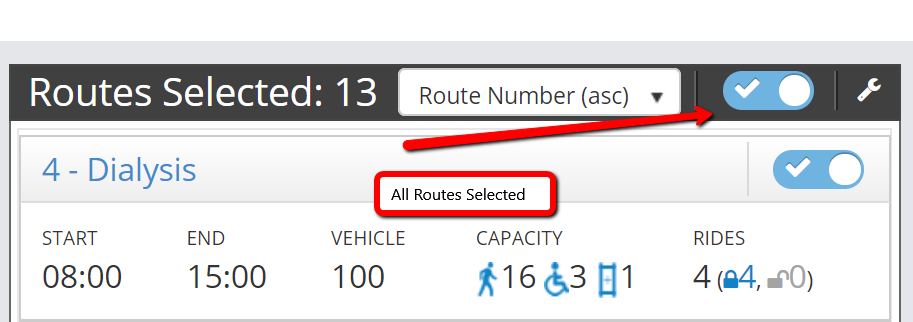
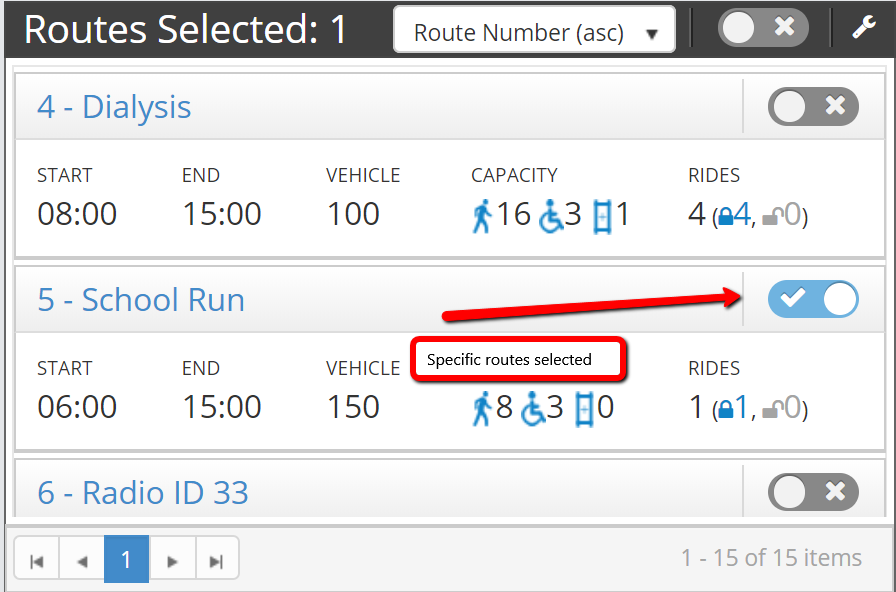
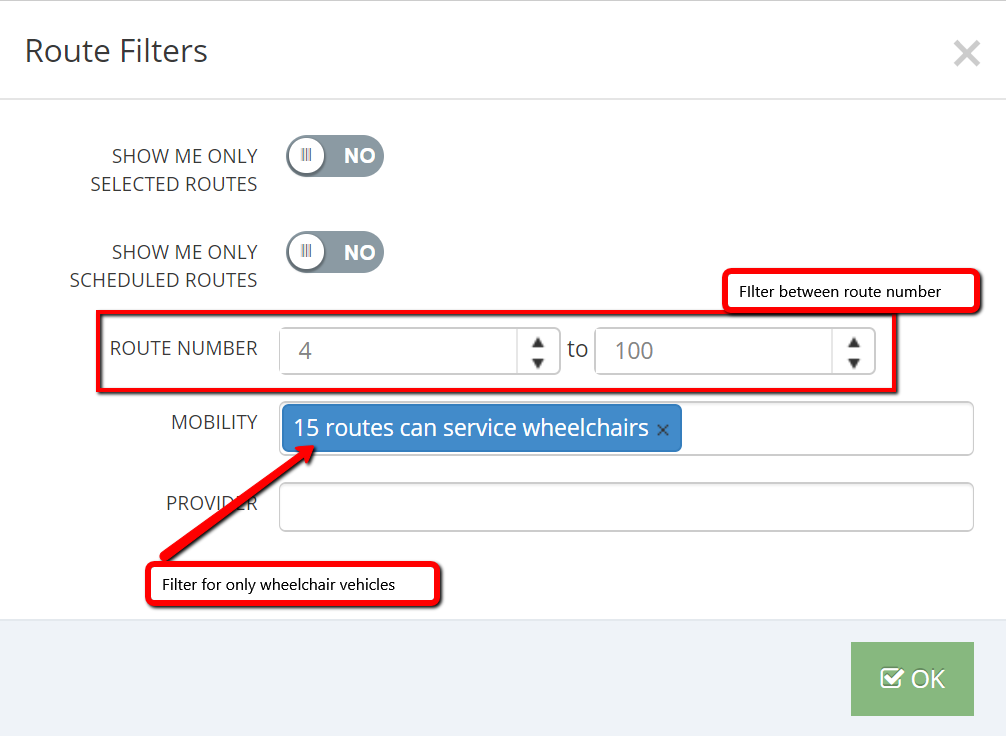
- On the left side you will see the available routes for that day. You can select all by clicking the X beside the wrench, select certain routes by clicking the X beside the route name, or use the wrench to filter by mobility or route numbers.
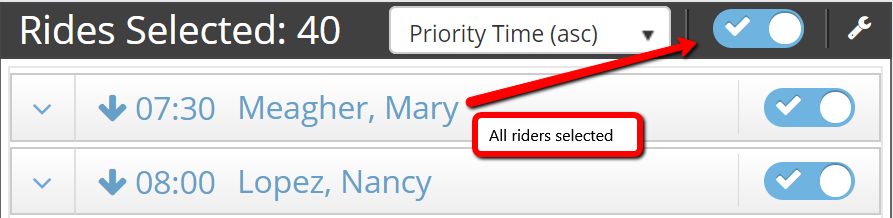
- On the right is all the riders in the holding pen. To select all riders click the X beside the wrench, to select certain riders click the X beside the riders name, or click the wrench to filer for specific riders.
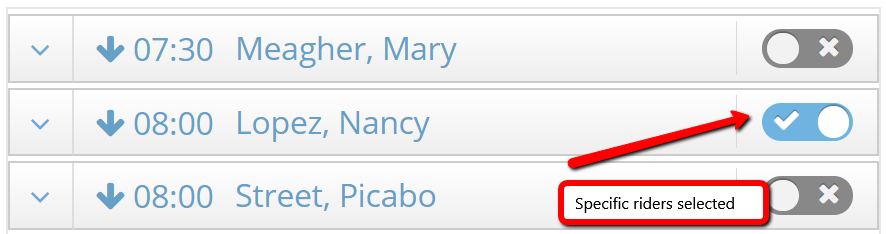
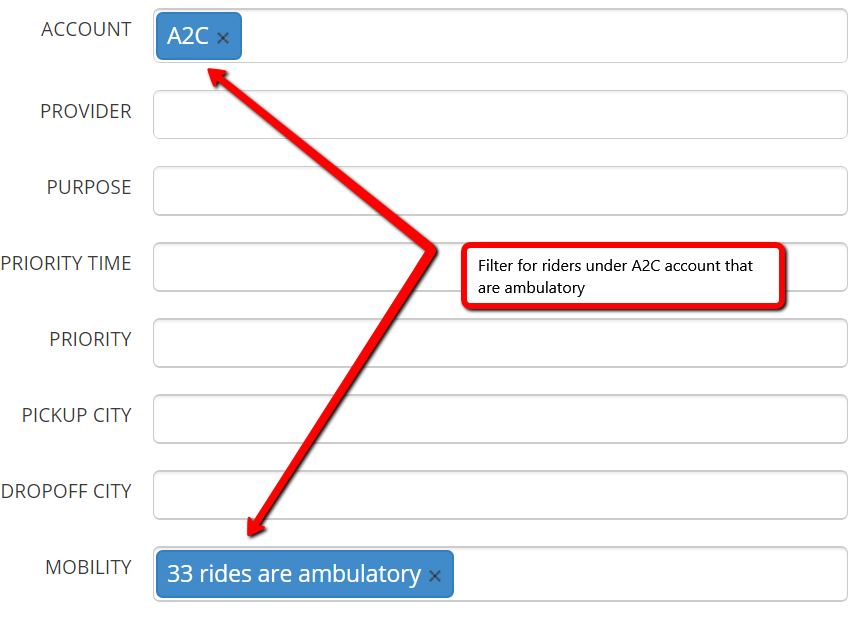
- Select the routes and riders you wish to schedule and click schedule in the top right.
- Review the schedule that was created by clicking on the route name
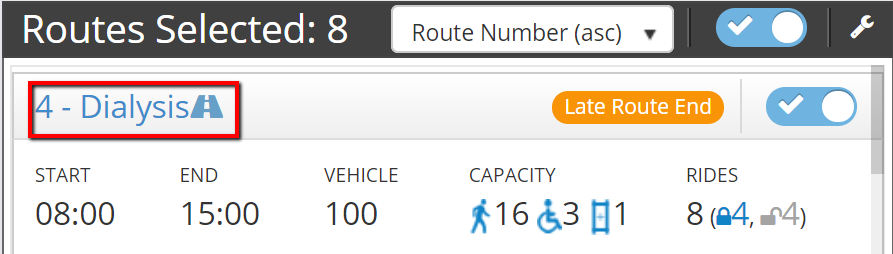
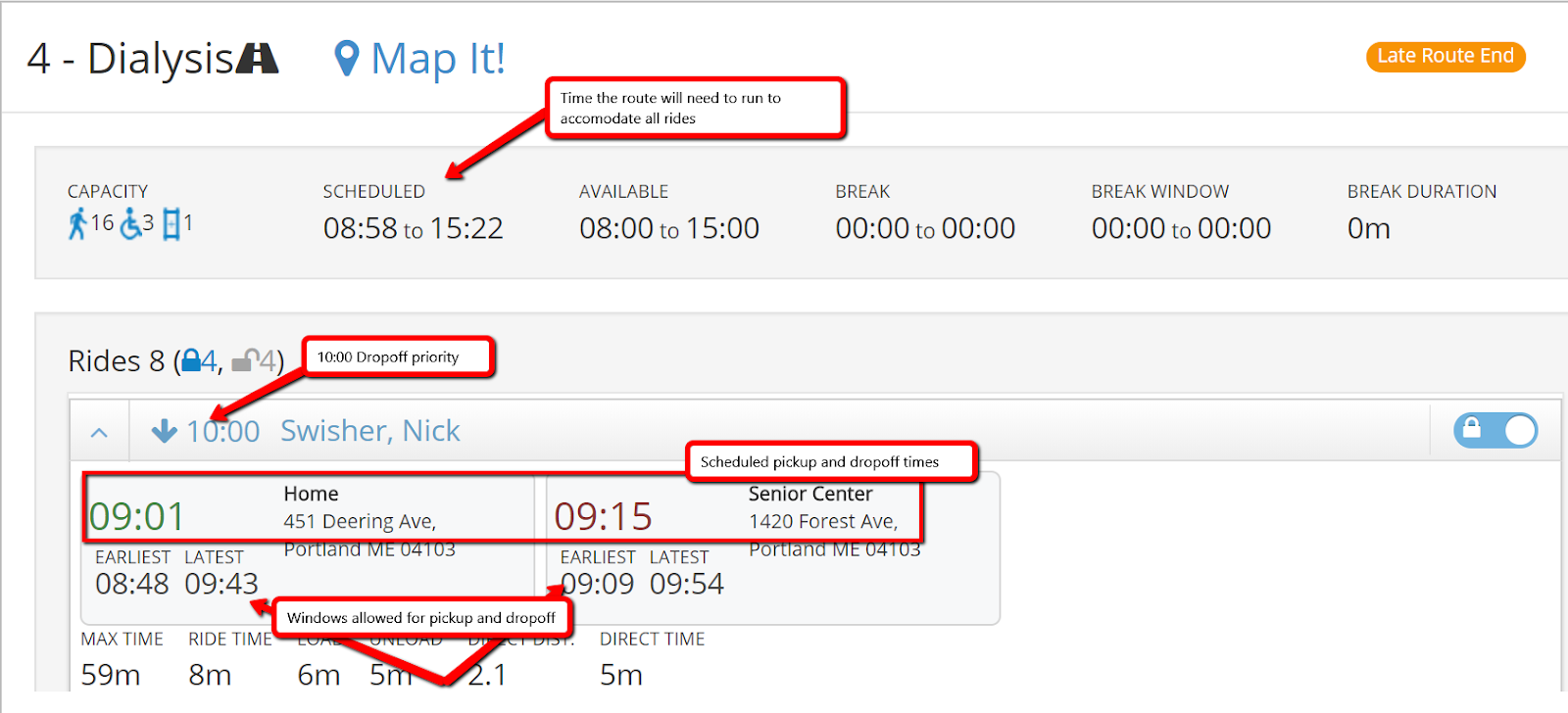
- After reviewing all routes click save to save the results.
- To reset and run again click Refresh in the top right
Non-Priority Violations and Allow Reseating For:
- Allow Non-Priority Violations When Seating will let the Auto Scheduler violate the rules set up in the Schedule Profile. For example, if a rider has a 10:00 appointment and a max ride time of 60 minutes, the Auto Scheduler could allow them to ride more that 60 minutes as long as they aren’t dropped off after 10:00
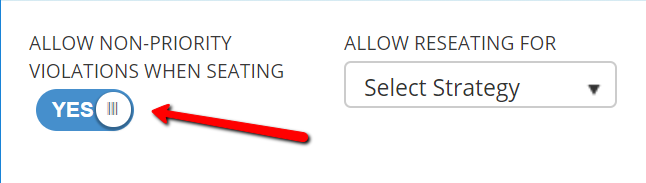
- Allow Reseating For will gives you four options.
- No Rides will reverse changes after scheduling with another strategy
- Priority Violations allows Auto Scheduler to violate priority times
- All violations allows priority and non-priority violations
- For efficiency allow Auto Scheduler to move rides from route to route.
- Auto Scheduler will have to be ran once before any of these strategies can be used.