Overview:
This document explains how to run audits and fix common mistakes.
Running audits daily is essential for ensuring data quality and creating accurate reports. Audits should be done frequently to quickly catch any mistakes made by drivers or during the validation process. The time to fix a mistake is when it is found—if it isn’t caught for several weeks, it will be much more difficult to find and fix.
If you wait until the end of the month to audit—or even just the end of the week—the number of mistakes to be rectified could be overwhelming.
Section 1: Navigating to the Audits
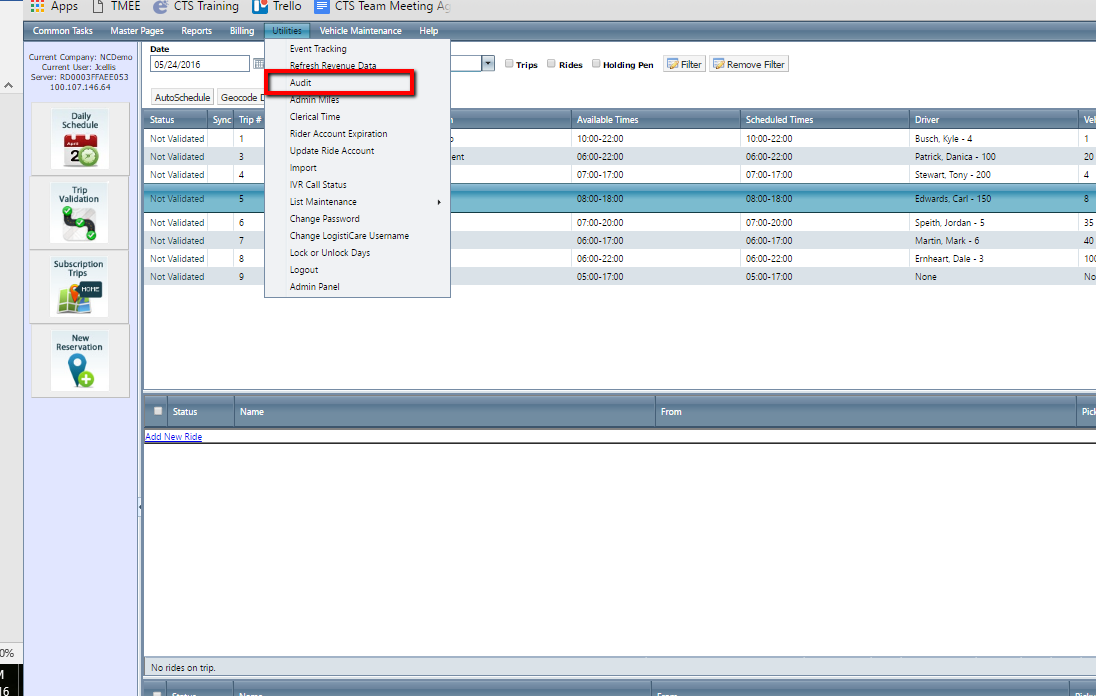
From the "Utilities" tab, select "Audit."
To run an audit, select the date range and the audit type, then click the “Audit” button. You will see a screen showing the trips or rides that failed the audit.
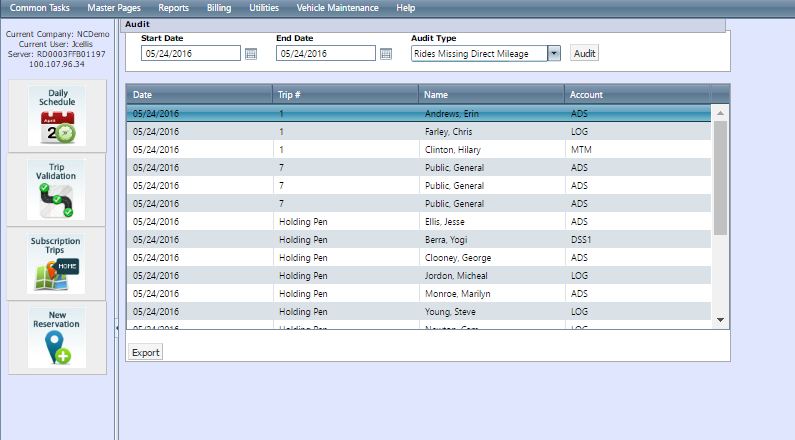
We will review the different types of audits in the next section.
Section 2: Audit Types
Rides Missing Direct Mileage Audit
This audit shows all riders that did not have direct mileage calculated.
This is generally a geocoding problem. To correct these, double-click on the ride result, then click the “Calculate” button. 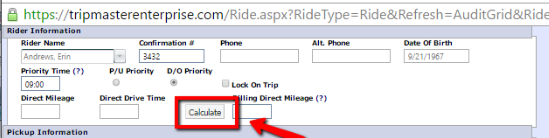
If you get the message “Pickup and Destination must both be verified before calculating direct drive,” this indicates one or both sites have not been geocoded:
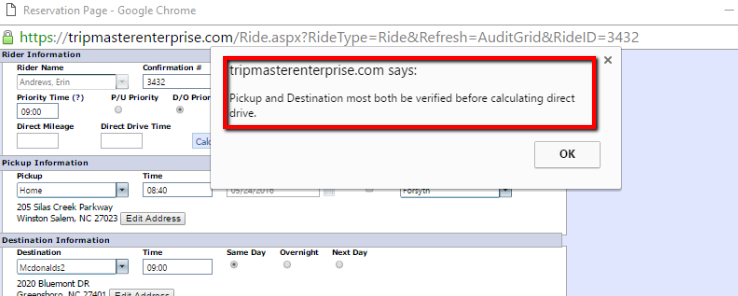
To geocode, select edit address for the pickup and dropoff locations.
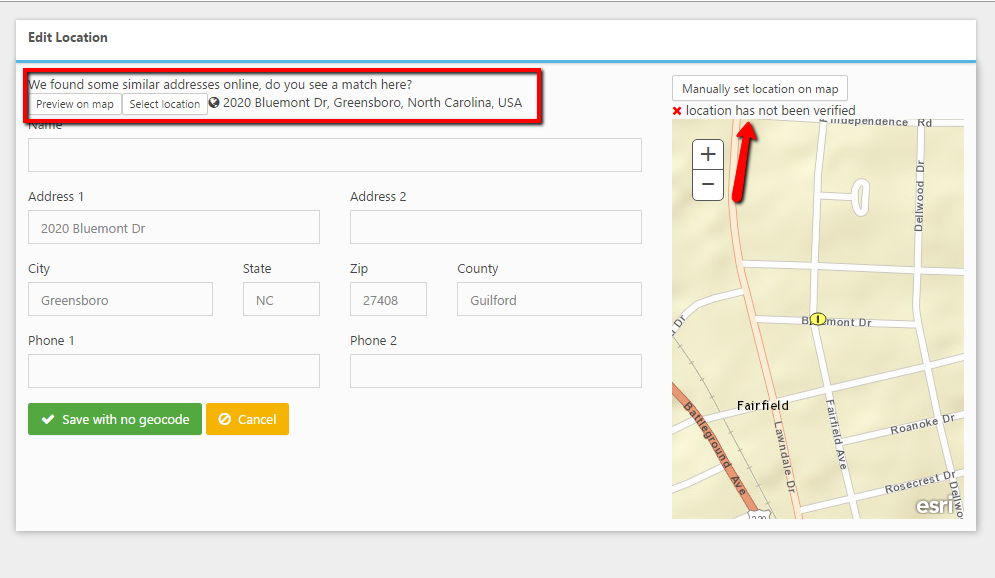
You can choose “Preview on map” to verify the location, then select location.
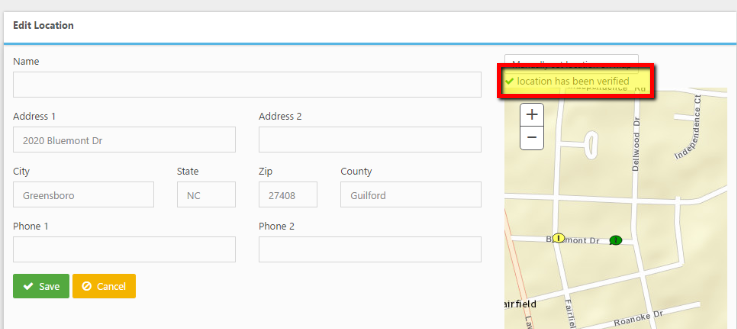
Once this is done, click the “Calculate” button, and the direct mileage and direct drive time will populate.
When you click “Save,” the rider will be removed from the audit page, and you can continue to the next rider.
You can also hit "Calculate Direct Drives" from daily Schedule to make sure that all of the Direct Drives for a day are calculated. Fix any issues as prompted.

 This is good to add to the daily process, to ensure that for auditing and billing everything is calculated, but also so drivers have a verified location if using ParaScope.
Rides Missing Authorization Number Audit
This audit finds rides missing authorization numbers. If you are working with an agency or broker that requires these, you will have to correct them before billing can take place. To fix these, double-click on the ride result and fill in the correct authorization number on the reservation screen.
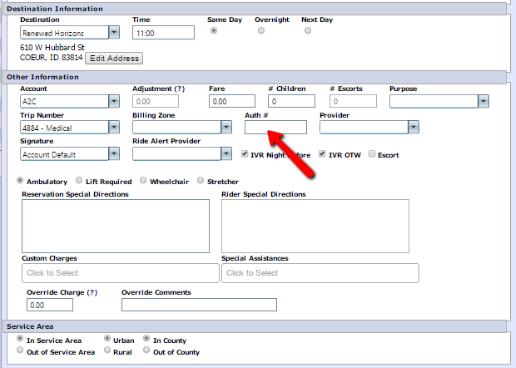
Once the correct number has been filled in, make sure to save and the ride will disappear from the audit screen and you can continue to the next ride.
Rides Missing BZones (Billing Zones) Audit
If you use billing zones to calculate charges for a ride, you need to find any rides missing BZones. To fix these, double click on the ride, find the billing zone drop-down, and select the correct billing zone.
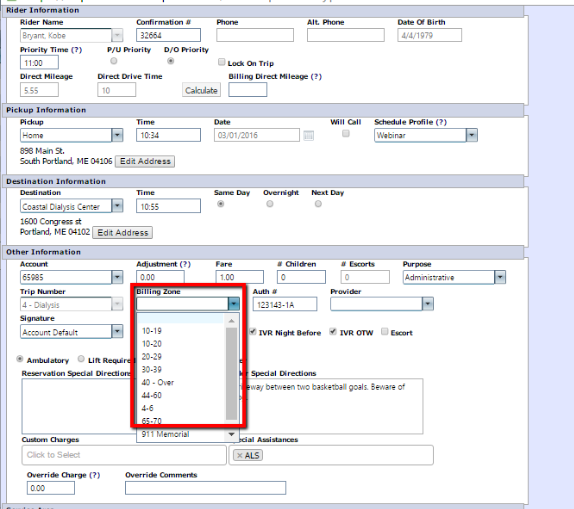
Once you have done this, make sure to save, and you will see the ride disappear from the audit, and you can continue to the next rider
Unreconciled Trips/Rides Audit
Everyone should use this audit. This audit catches any trips or rides that have not been validated, which would cause the trips or rides not to show up for billing and reporting.
To fix these, double-click on the ride, and your validation page will appear. You must have recorded a start and end odometer for the entire trip, as well as a trip start and end time.
Any rides on the trip must be validated as well, meaning the status must be rode, no show, rider cancel, admin cancel, or not ready.
To fix this, select the rider or riders then click the correct button on the bottom of the page.
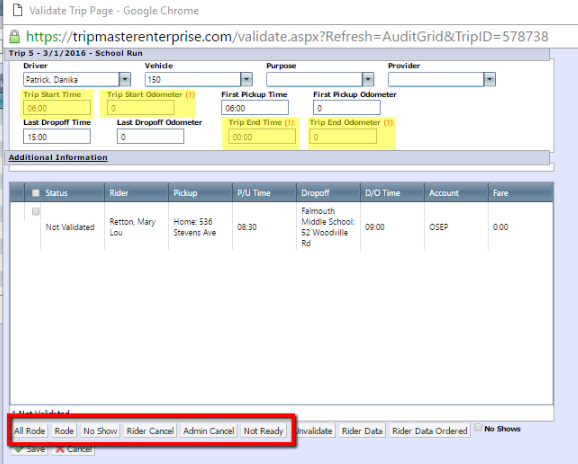
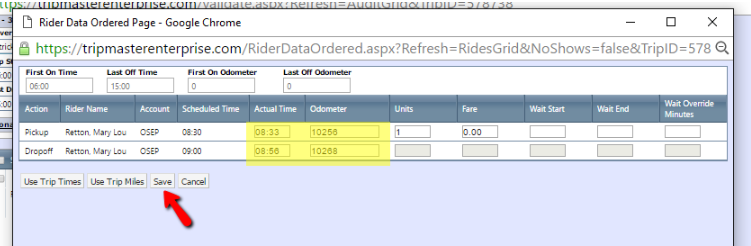
If you need to enter the rider’s pickup times, dropoff times, and odometers, click “Rider Data Ordered” from the bottom right of the page. This will bring up a screen to enter that information.
After you have done this, be sure to save this screen and save again on the validation screen. Then the trip will disappear from the audit screen and you can continue to the next trip.
Driver Times Audit
This audit will catch any drivers whose hours overlapped from one trip to the next in the same day.
In this example you can see Mark Twain was driving trip number 50 at the same time he was driving trip number 98.
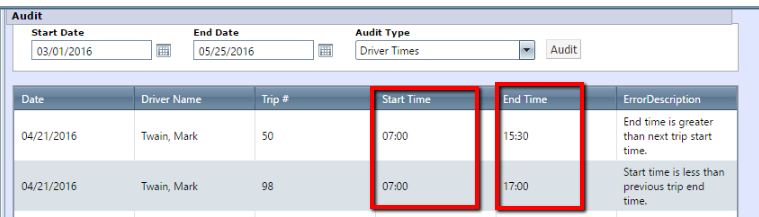
To fix this, double-click on the driver; this will bring up the validation page.
From here, change the start and end times to the correct times the routes were running.
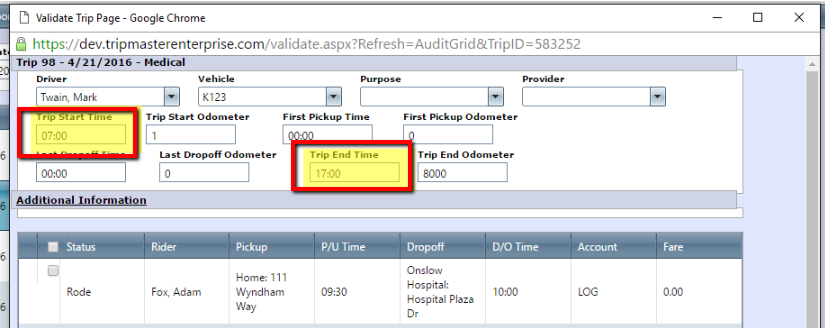
Once this is corrected be sure to save and you will see the driver vanish from the audit screen and you can move on to the next driver.
Passenger Times Audit
This audit will catch incorrect passenger times (for example, if the ride start and end times were not inputted, the times are the same, or the end time is less than the begin time.)
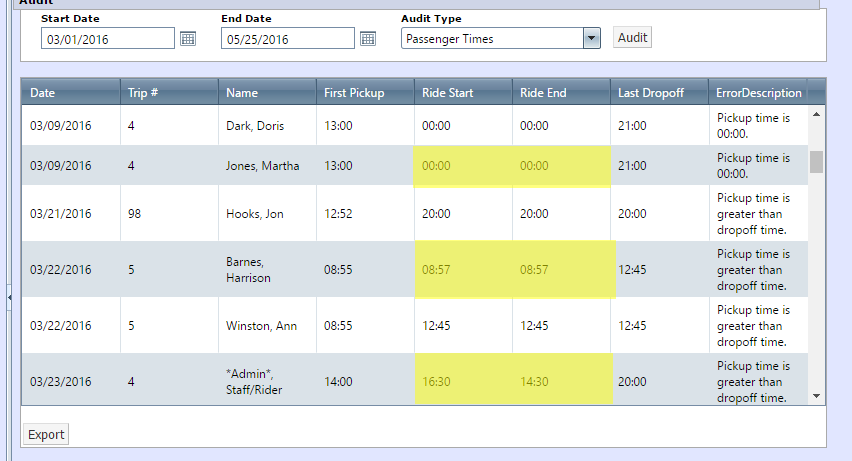
To fix this, double-click on the ride to bring up your validation page, click “Rider Data Ordered,” and put in the correct actual time for the pickup and dropoff.
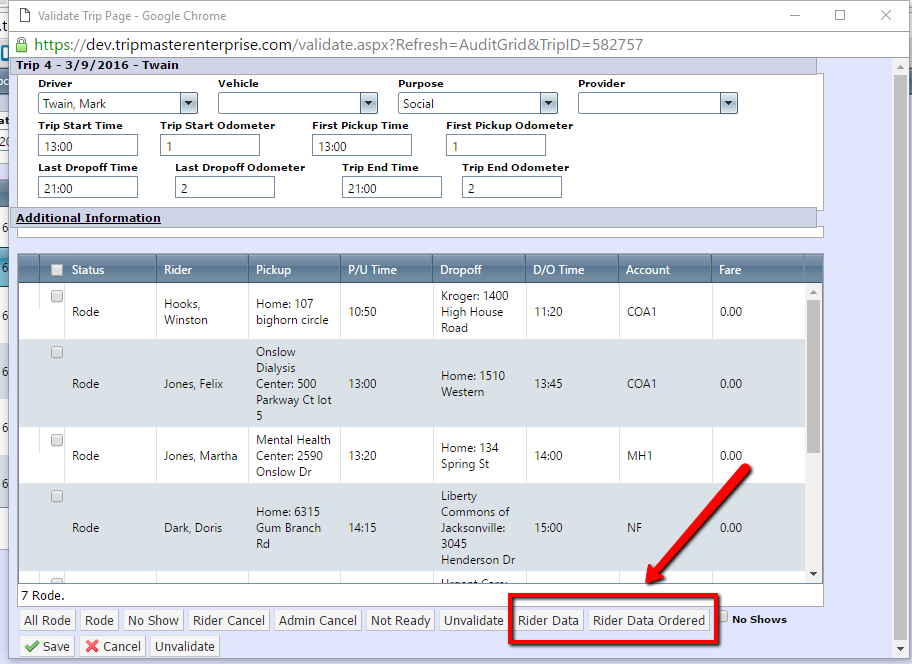
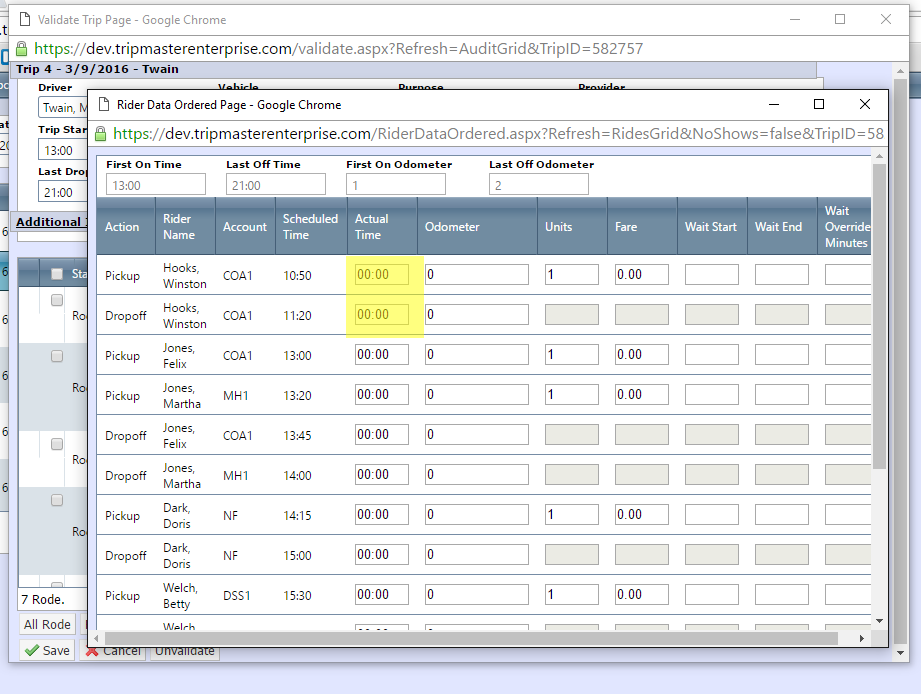
After you have done this, be sure to save this screen and save again on the validation screen. The rider will disappear from the audit page and you can continue to the next rider.
Passenger Odometer Readings Audit
Similar to the passenger time audit, the passenger odometer reading audit catches riders’ miles that are zero, are the same, or the pickup odometer is greater than the dropoff.
A pickup odometer reading greater than the dropoff will cause negative mileages to show up on your reports.
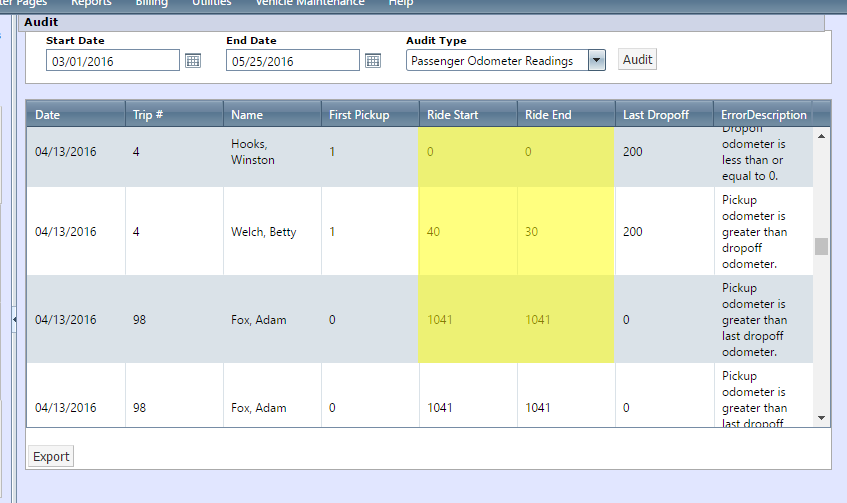
To fix this, double-click on the rider to open your validation page, select “Rider Data ordered” and put in the correct mileages for the pickup and drop off.
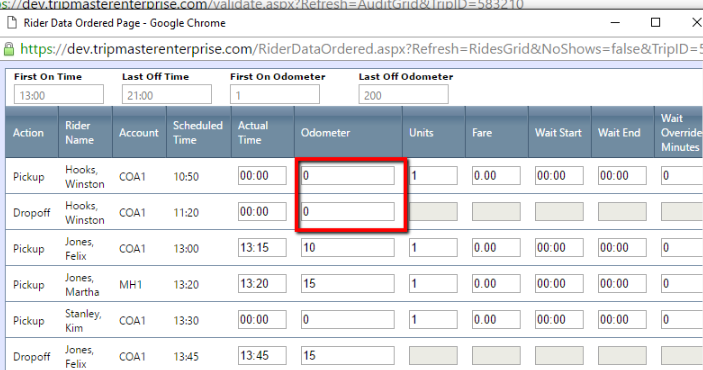
After you have done this, be sure to save this screen and save again on the validation screen. Once you do this you will see the rider disappear on the audit page and you can move on to the next rider.
Vehicle Trip Time Readings Audit
The vehicle trip time reading will catch vehicles that have overlapping utilization times in the same day. Since is not possible for one vehicle to be in two places at the same time, and most likely, the wrong vehicle was assigned to a route or it was a split route and the times were not adjusted.
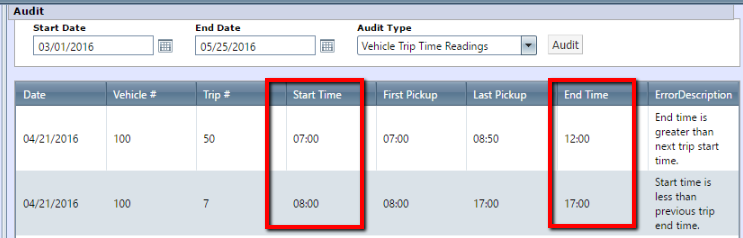
To fix this, double-click on the vehicle to bring up the validation page, identify the mistake, if the trip times need to be adjusted or the vehicle needs to be changed, then save.
You will see the vehicle disappear from the audit page, and you can move to the next vehicle.
Vehicle Trip Odometer Readings Audit
The vehicle trip odometer readings audit is very important for keeping accurate reports. This audit catches missing miles, when the end odometer for a day does not match the start odometer for the next day.
The vehicle utilization report is a great tool to find other mistakes that cause vehicle odometers to be off. To get this report, go under the Report tab, scroll down to Vehicles, then select Utilization. Notice it is located in a different section than the other audits.
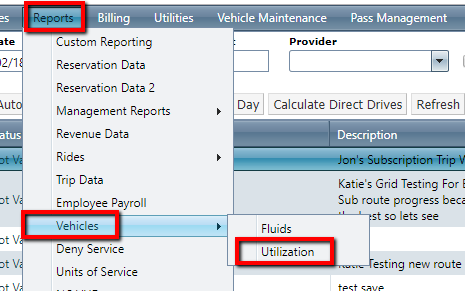
This will bring up a page for you to select your date ranges and maximum miles. The maximum miles you set will cause any vehicles that have exceeded that mileage for a day to show in red text.
Once you have the date and miles set, click the Submit button. This will bring up your vehicle utilization report you can scroll through using the blue arrows in the top bar of the page and look for any errors.
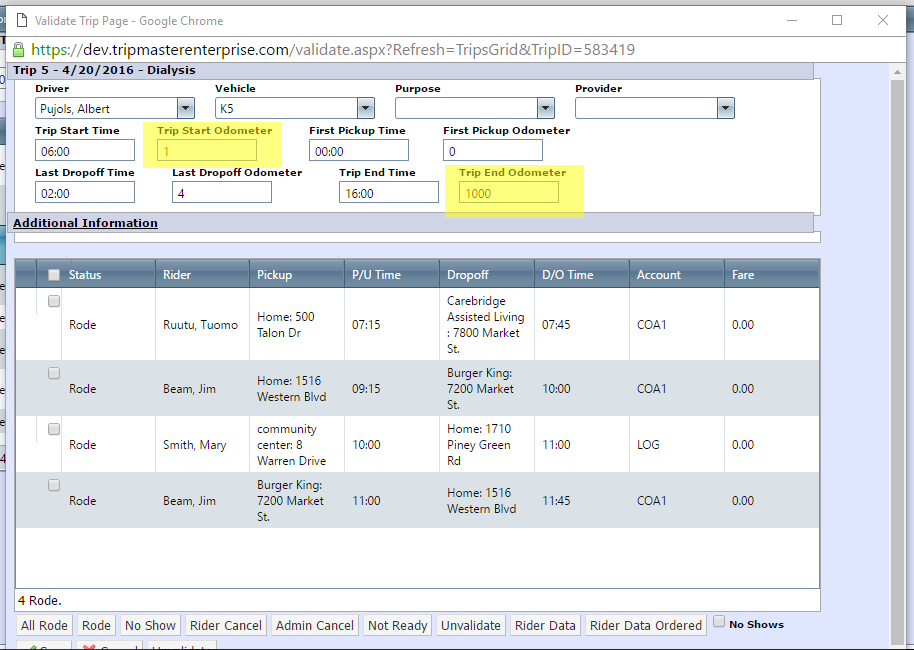
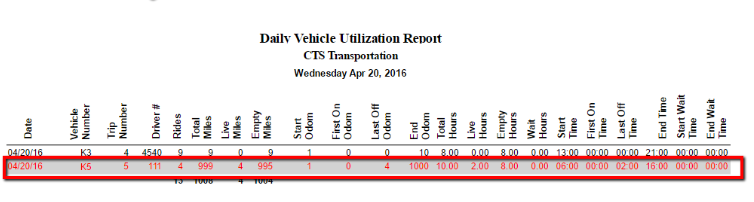
For example, you can see vehicle K5 on April 20th drove 999 miles, which is very unlikely.
To correct mistakes on the audit page, double-click to bring up the validation page, then put in the correct trip start and trip end odometers. Then click Save, and you will see this trip vanish and you can move to the next trip.
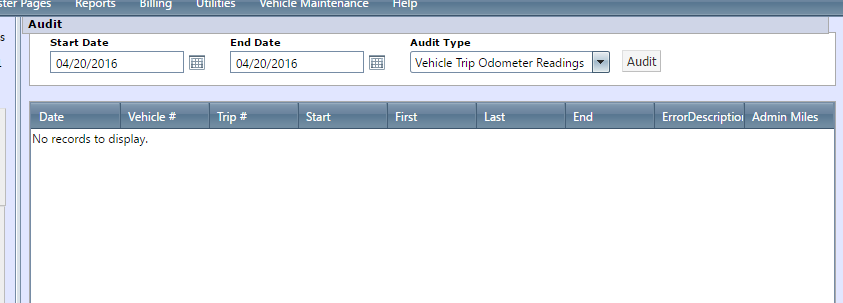
The mistakes with negative mileages or high mileages do not always show up in the audit. In the example below, you can see the vehicle trip odometer readings audit does not pick up this mistake; looking through the vehicle utilization report will help you find mistakes.
The easiest way to fix these mistakes is in trip validation. Open the trip validation page to start; here we will choose April 20th and look for vehicle K5.
Find this trip and double-click to open the validation page, where you will see the error in the trip start odometer and trip end odometer. Fill in the correct mileages for these fields and save—this will correct the high or negative mileage you see on the vehicle utilization report.