
Overview:
ParaScope allows drivers to complete pre-trip and post-trip inspections within the app, saving paper and making inspection data immediately available to dispatchers. This manual walks you through the feature’s setup and functions.
Section 1: Setting up Service Categories
First, we will setup Service Categories. The service categories reflect what area of the vehicle is being inspected (for example, a task for checking the oil would be in the “Engine” service category.) Create as many service categories as you need by following these instructions:
- The top menu within Trip Master includes a “Vehicle Maintenance” tab. Mouse over this tab and select “Service Categories.”
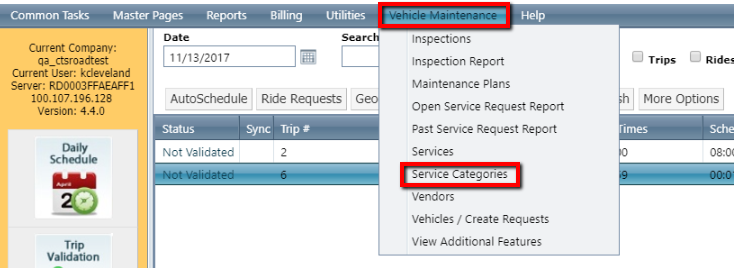
 If your company has purchased the Vehicle Maintenance Module (VMM), you will see all the menu options shown above. If you haven’t purchased the VMM, you will only see “Inspections,” “Service Categories,” and “View Additional Features.”
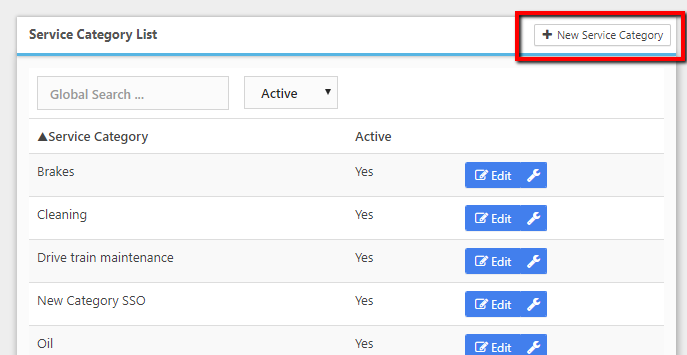
 - In the top right corner, select “+ New Service Category."
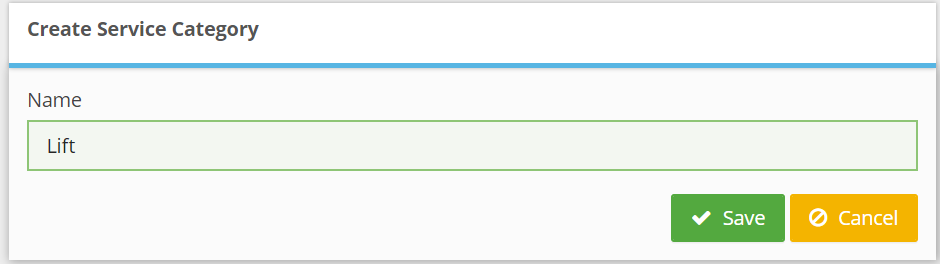
- Enter the category name, and save.
Section 2: Setting up Inspections
Inspections are items that drivers must complete before their route (pre-trip inspection) or on completion of their route (post trip inspection.)
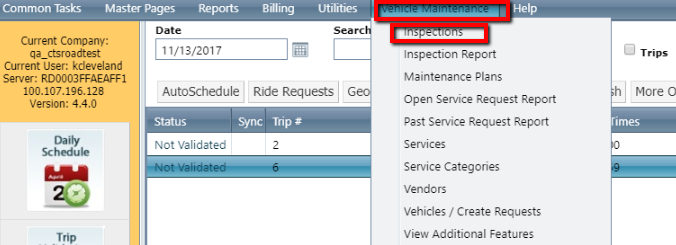
- Go “Vehicle Maintenance” and select “Inspections.”
- In the “Service Category” dropdown, select a category to add inspections to, or select “+New Inspection” in the top right corner to add a new category.
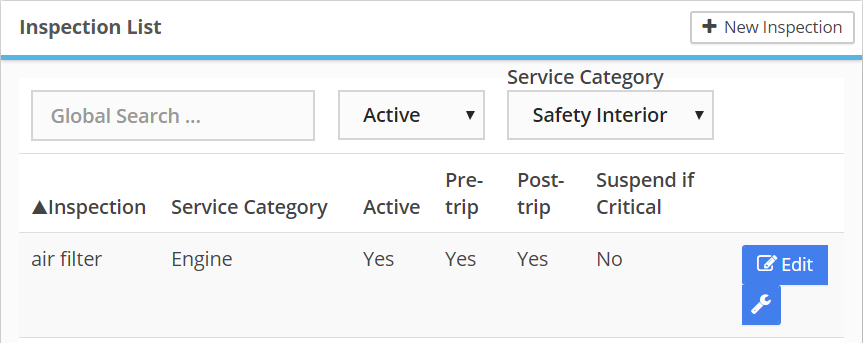 If you didn’t choose a service category, you will be prompted to do so before adding a new inspection.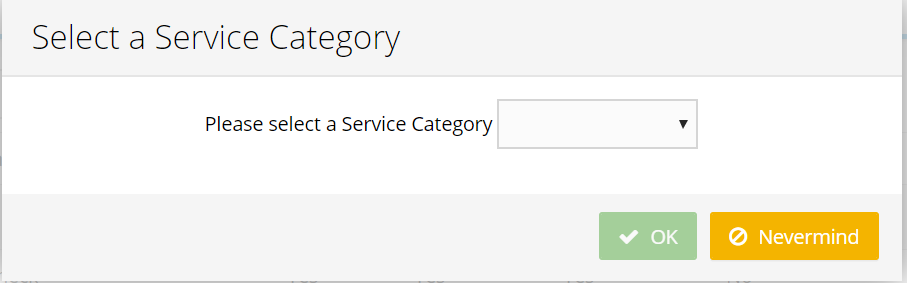
Choose the category, click OK, then enter the inspection name. Check the “Pre-trip” and/or “Post-trip” boxes to indicate when the inspection should be done.
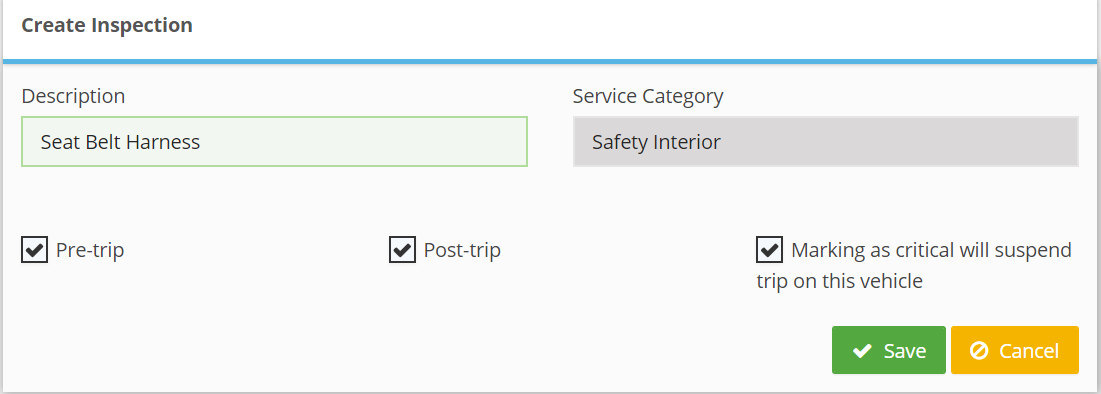 If the “Marking as critical will suspend trip on this vehicle” box is checked, any time a driver marks that inspection “Service Critical” on a pre-trip, they will be logged out of ParaScope after finishing the inspection, and will be directed to contact dispatch to arrange a vehicle change.
 - Save
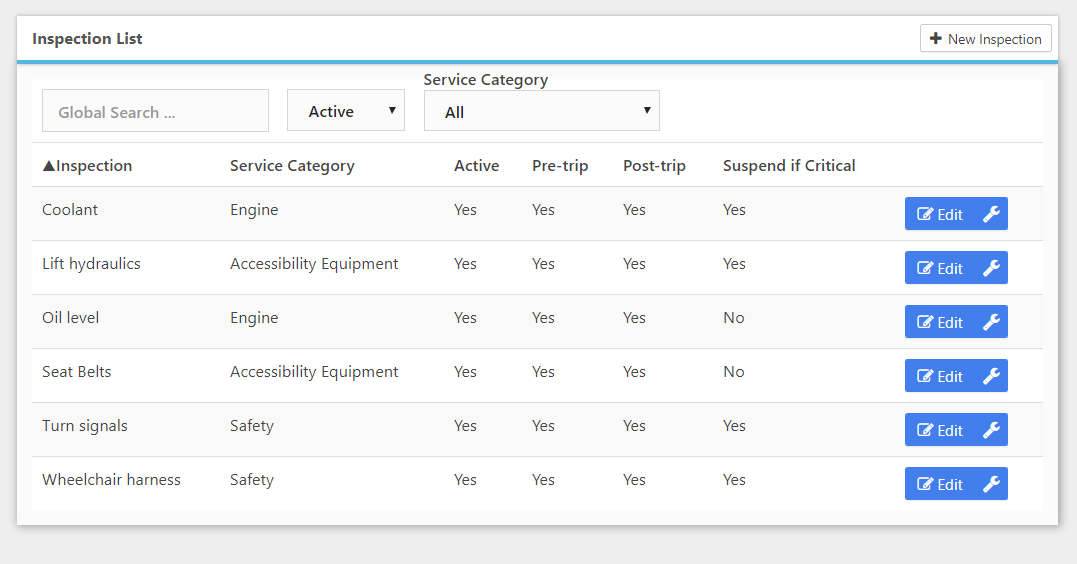
You can add as many inspection items as you need.
Section 3: Review Daily Schedule for Accuracy
On the Daily Schedule screen, ensure that each route has a pre-trip and post-trip inspection assigned.
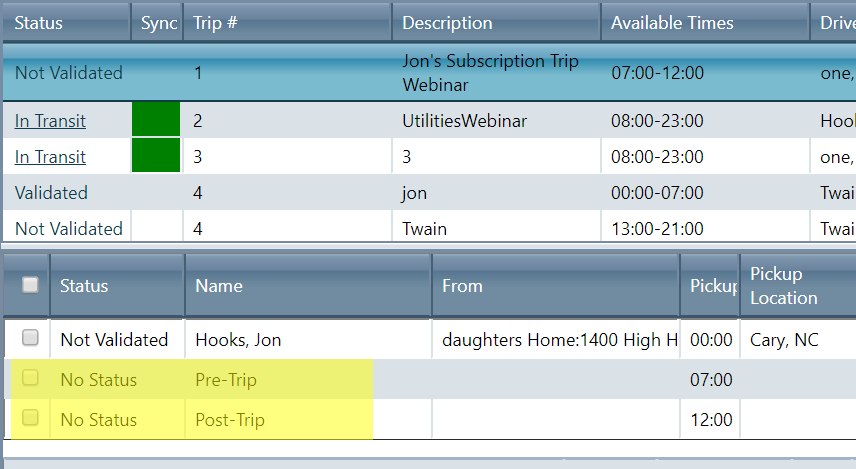
If the trip does not have a pre-trip or post-trip assigned, right-click a route, select “Edit Trip,” then check the boxes for pre-trip and post-trip and enter the duration in minutes.
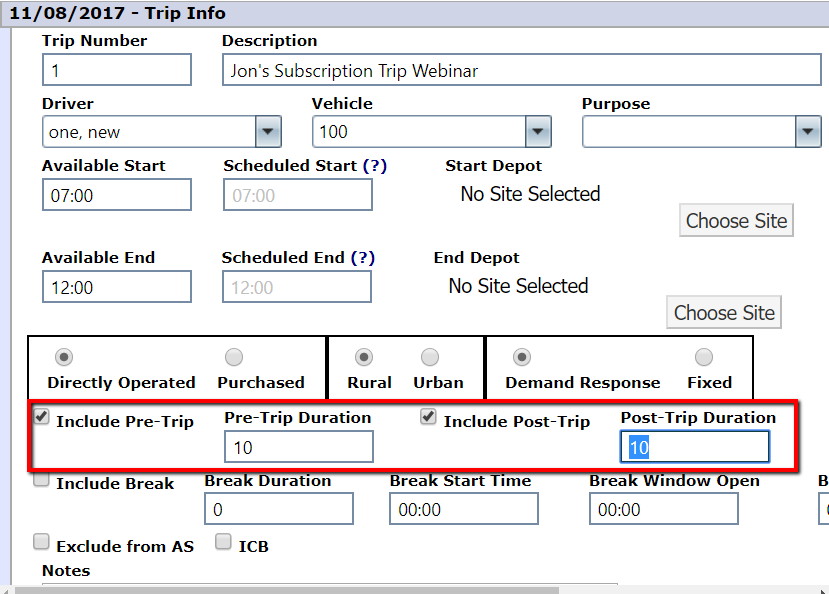
When you Save, you should see the route now has a pre-trip and post trip on the Daily Schedule.
Section 4: Driver View of Inspections on ParaScope
When the driver logs into ParaScope, and starts a route, they will see the “Pre-Trip Inspection” screen. The driver will not have the option to move forward until it is completed.
The driver will choose OK, SERVICE NEEDED, or SERVICE CRITICAL for each item, then submit.
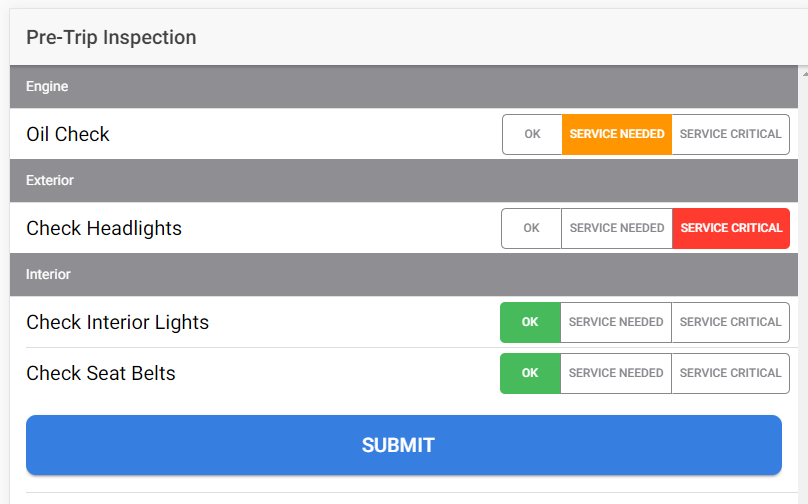
If no critical services are required, the driver will continue to their typical route view.
If the “Marking as critical will suspend the trip on this vehicle” box is checked on any Service Critical inspection, the driver will be logged out of ParaScope and see this message:
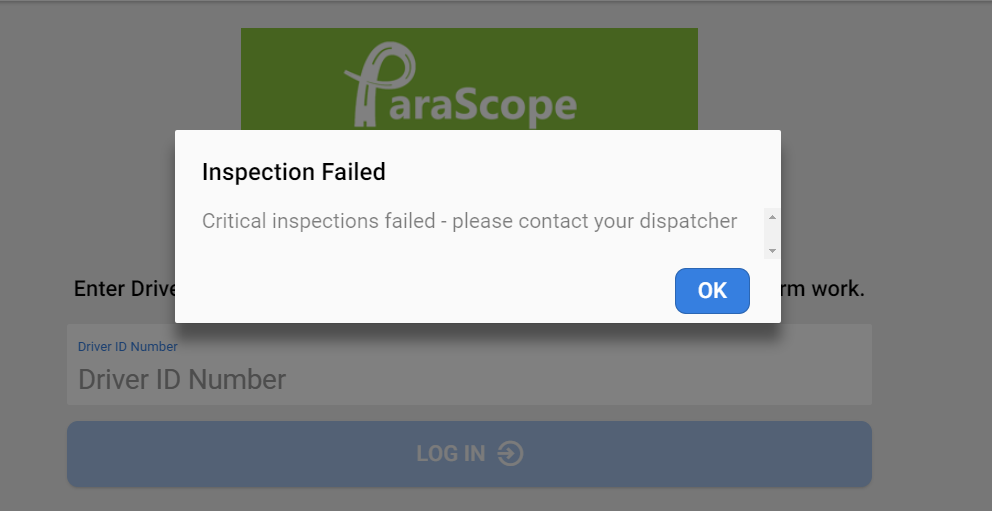
If an item was incorrectly marked as “SERVICE CRITICAL” and the system prompts the driver to log out, a dispatcher or administrator must create a new route with a new route number OR change the vehicle number so that it is not the same combination as it was at the time the inspection failed.